
Push Files
The cloud disk supports uploading local files to the cloud disk and then pushing them to one or more cloud phones. You can select all or multiple cloud disk files and batch select target cloud phones by group, reducing repeated uploads and improving multi-account operation efficiency.
1. Upload Files to the Cloud Disk
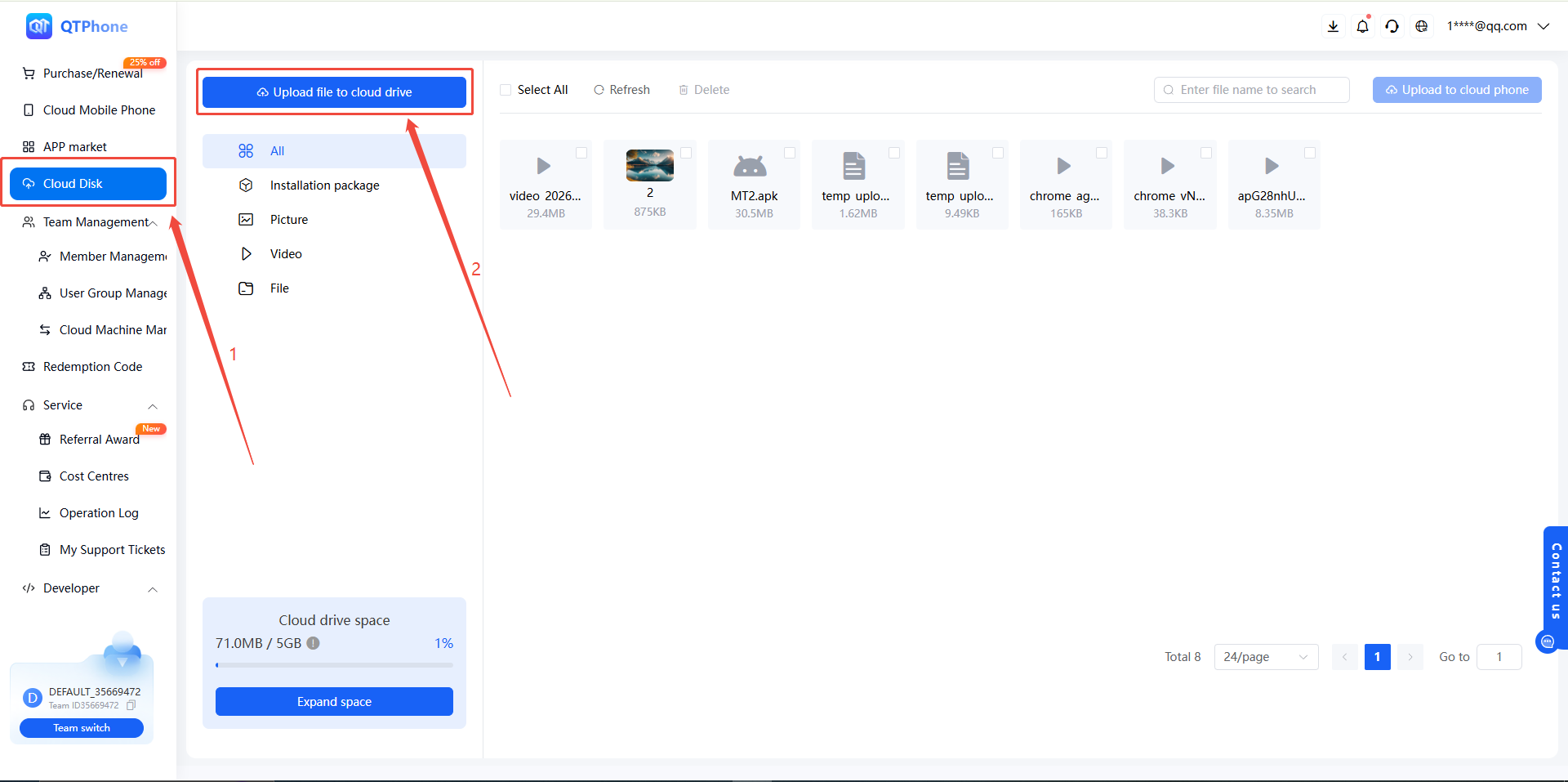
- Click Cloud Disk in the menu bar;
- Click Upload Files to Cloud Disk and select local files to upload.
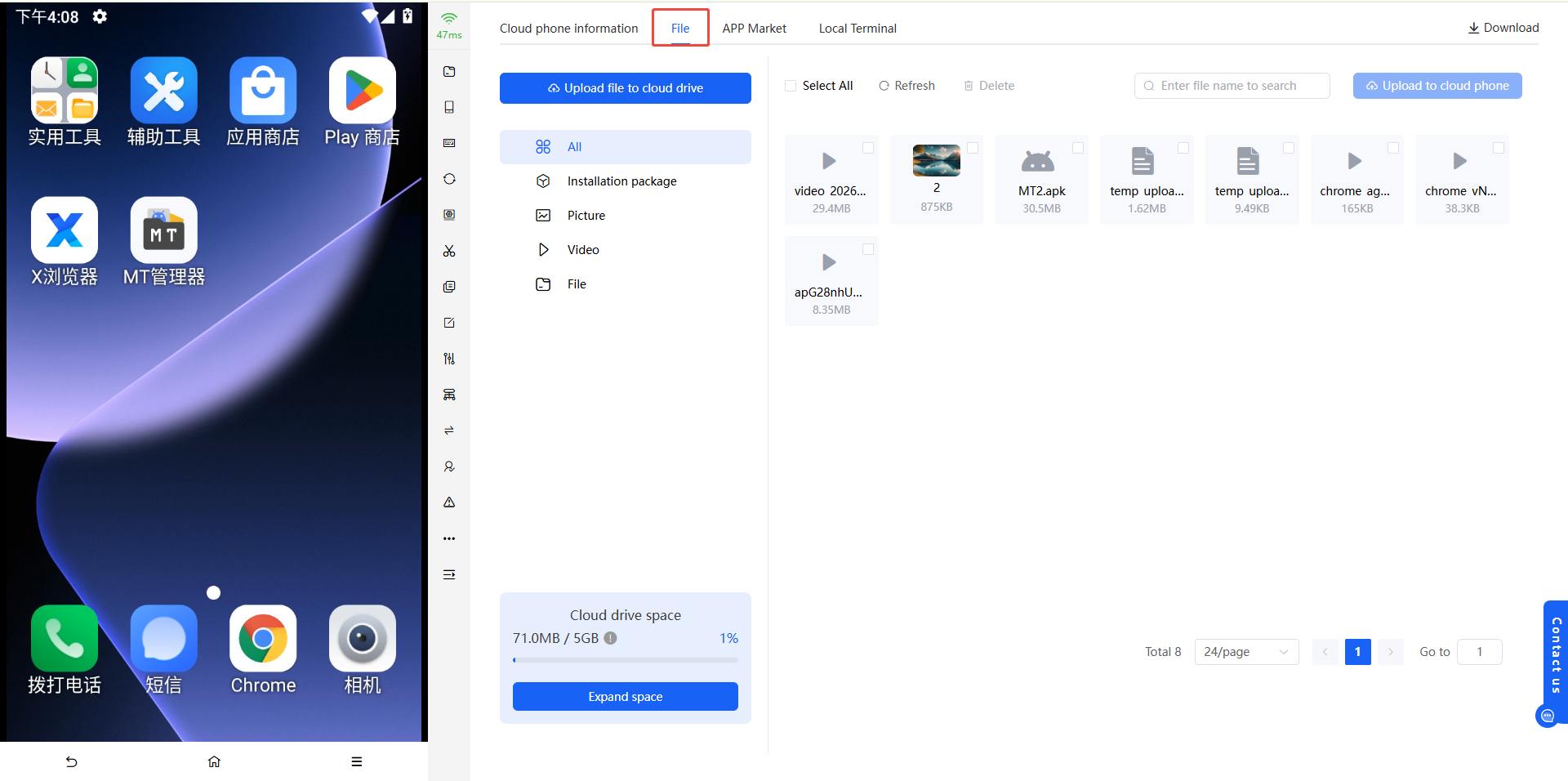
After the upload is complete, the files are displayed in the cloud disk and can be filtered by category:
- All
- Installers
- Images
- Videos
- Files
The cloud disk supports deleting files that are no longer needed, and you can click Refresh to update the file list.
2. Push Files to Cloud Phones
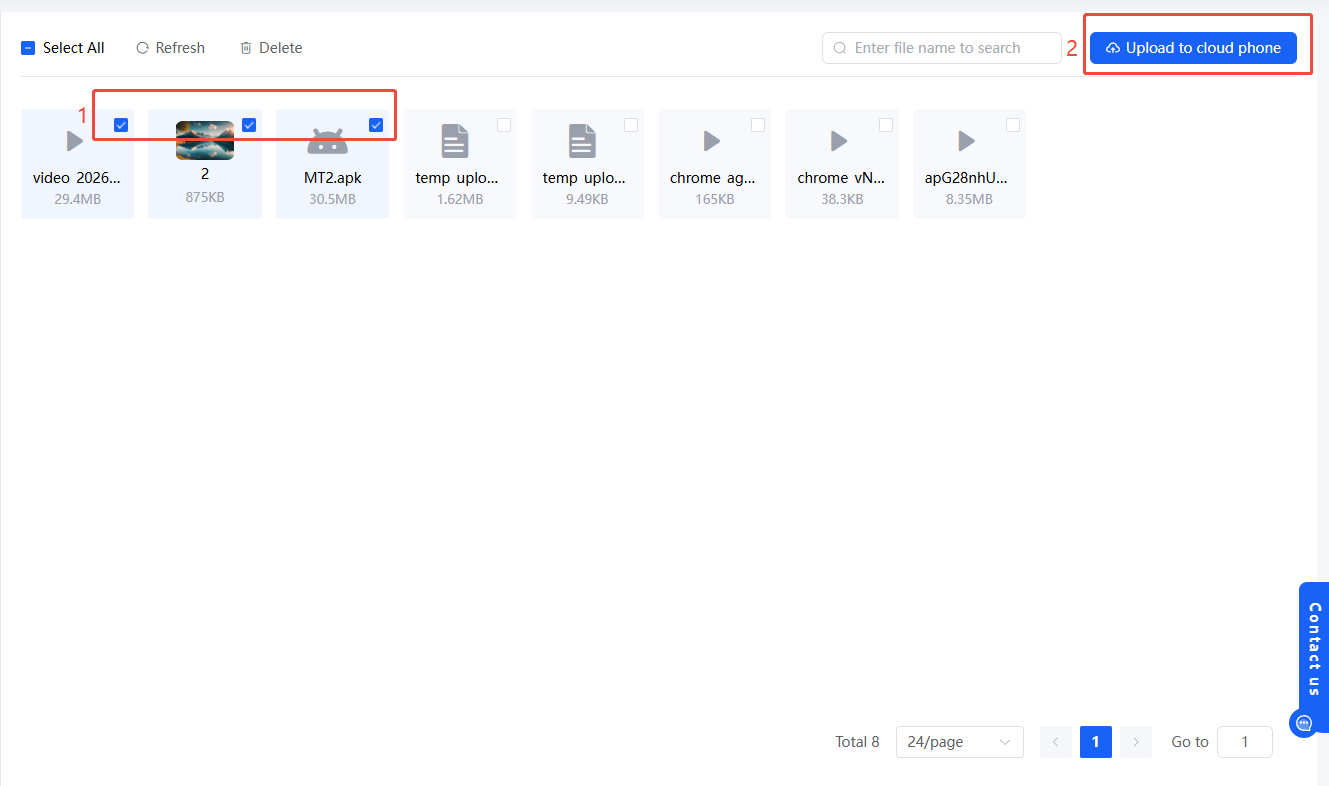
In the cloud disk, select the files to push — you can select all files in the cloud disk or select individual files;
Click Upload Files to Cloud Phone (push);
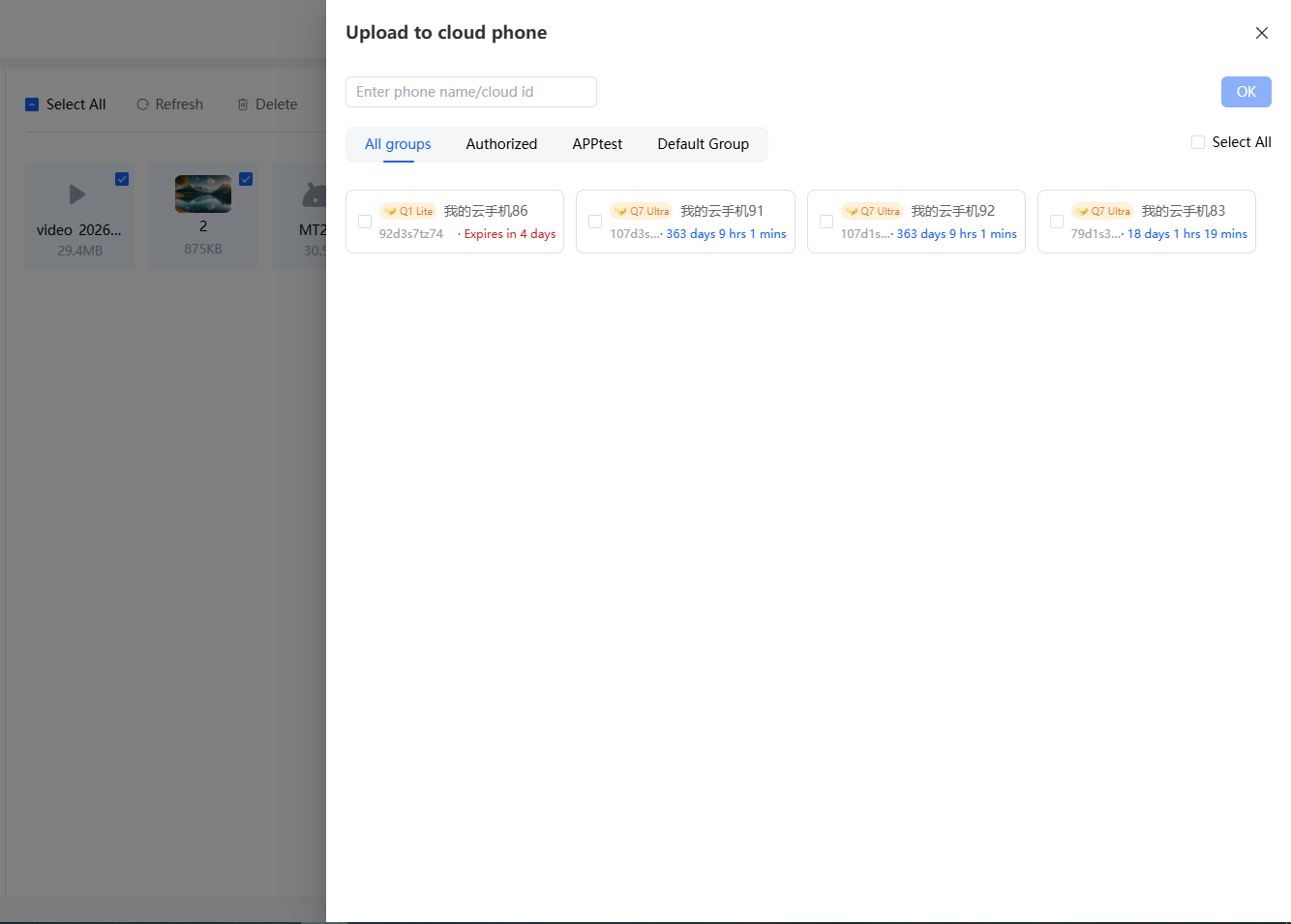
Select the target cloud phones, supported by group:
- All groups;
- Authorized groups: cloud phones that other users have authorized to you;
- Default group;
- Custom groups;
You can search by cloud phone name / ID and select files in the cloud disk to upload to cloud phones.
Tip: After a successful push, the files are saved in the Downloads directory of the target cloud phone.
3. Expand Cloud Disk Space
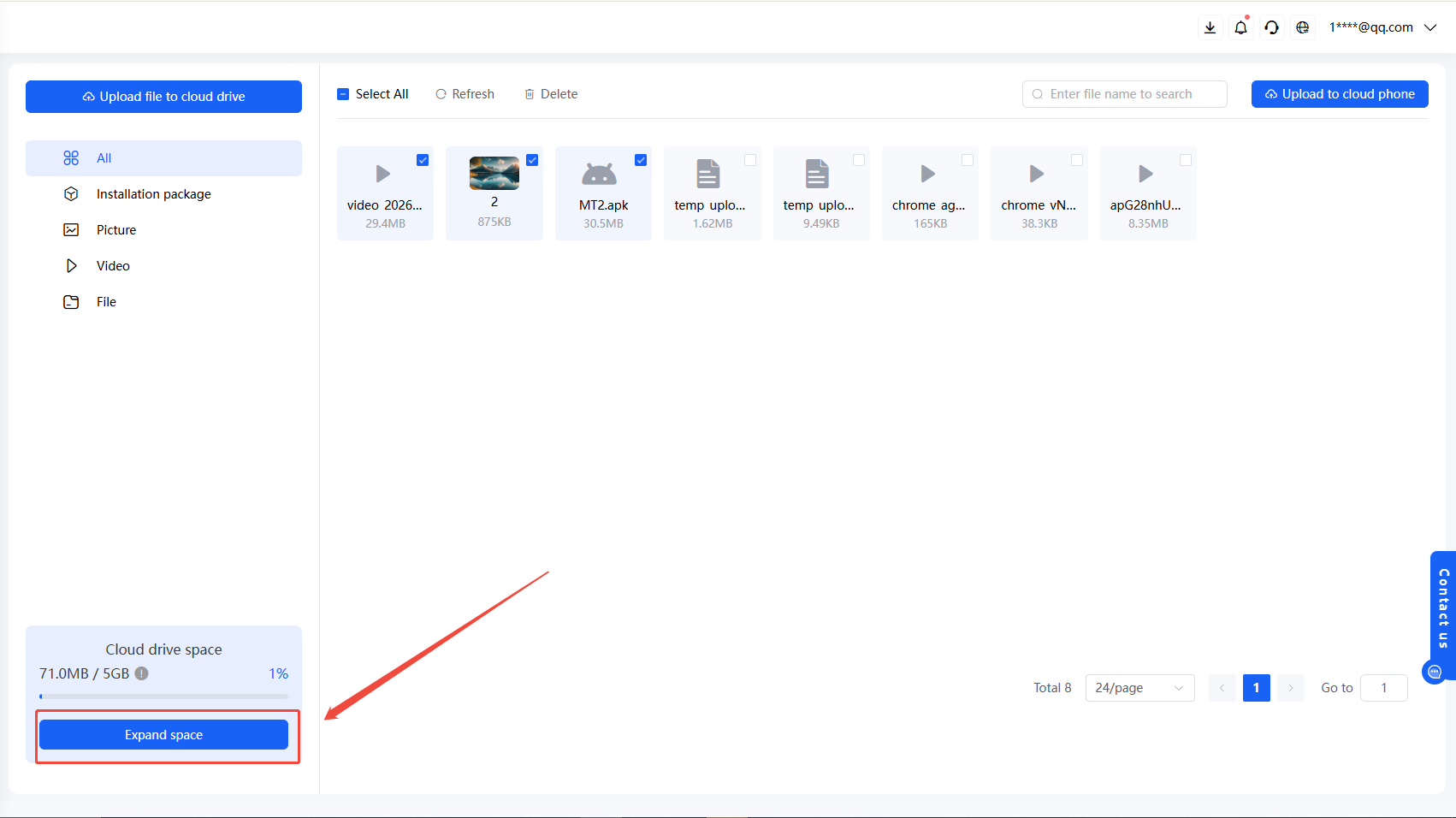
Click Expand Space in the lower-left corner of the cloud disk and purchase the corresponding plan to expand the cloud disk space.
4. Upload Files to a Single Cloud Phone
In the My Cloud Phones list, for a single cloud phone, you can directly upload cloud disk files via Files outside the cloud phone.
5. Tips
- Cloud disk space is limited; clean up files you no longer need in a timely manner;
- Before pushing, confirm that the target cloud phones are in a normal state to avoid push failures.
6. FAQ
Q1: Where are files saved after being pushed to a cloud phone? After a successful push, the files are saved in the Downloads directory of the target cloud phone.
Q2: What is an "authorized group"? It refers to cloud phones that other users have authorized to you, displayed alongside your default group and custom groups.
Q3: Can I push multiple files to multiple cloud phones at once? Yes. After selecting all or multiple files in the cloud disk, select multiple cloud phones to push in batch.
Q4: How do I expand cloud disk space? Click Expand Space in the lower-left corner of the cloud disk and purchase a plan.
Q5: How do I upload cloud disk files to a single cloud phone? In the My Cloud Phones list, open a cloud phone and use Files outside the cloud phone to upload directly.