
Modify Cloud Phone Parameters
Modify Cloud Phone Parameters lets you customize the geographic location, timezone, and system language of a cloud phone. Both single and batch operations are supported.
1. Modifiable Parameters
The following parameters can be modified in the parameter dialog:
| Parameter | Description |
|---|---|
| Geographic location | Longitude / latitude, custom location coordinates |
| Timezone | System timezone |
| System language | Device language |
To modify more parameters such as country, altitude, MCC/MNC, or auto location, use the Update Cloud Phone Config API.
2. Prerequisites
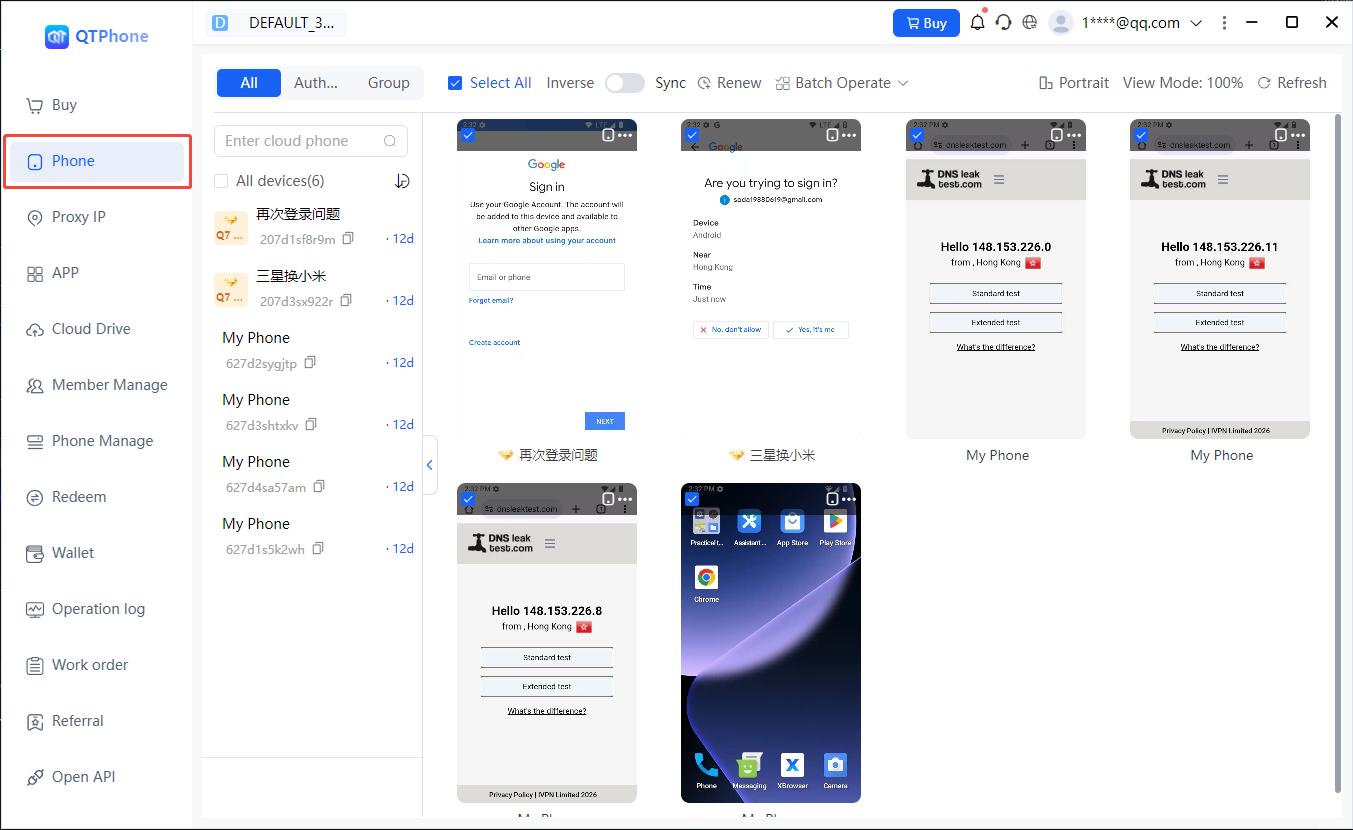
- A purchased cloud phone visible in the My Cloud Phones list.
3. Steps
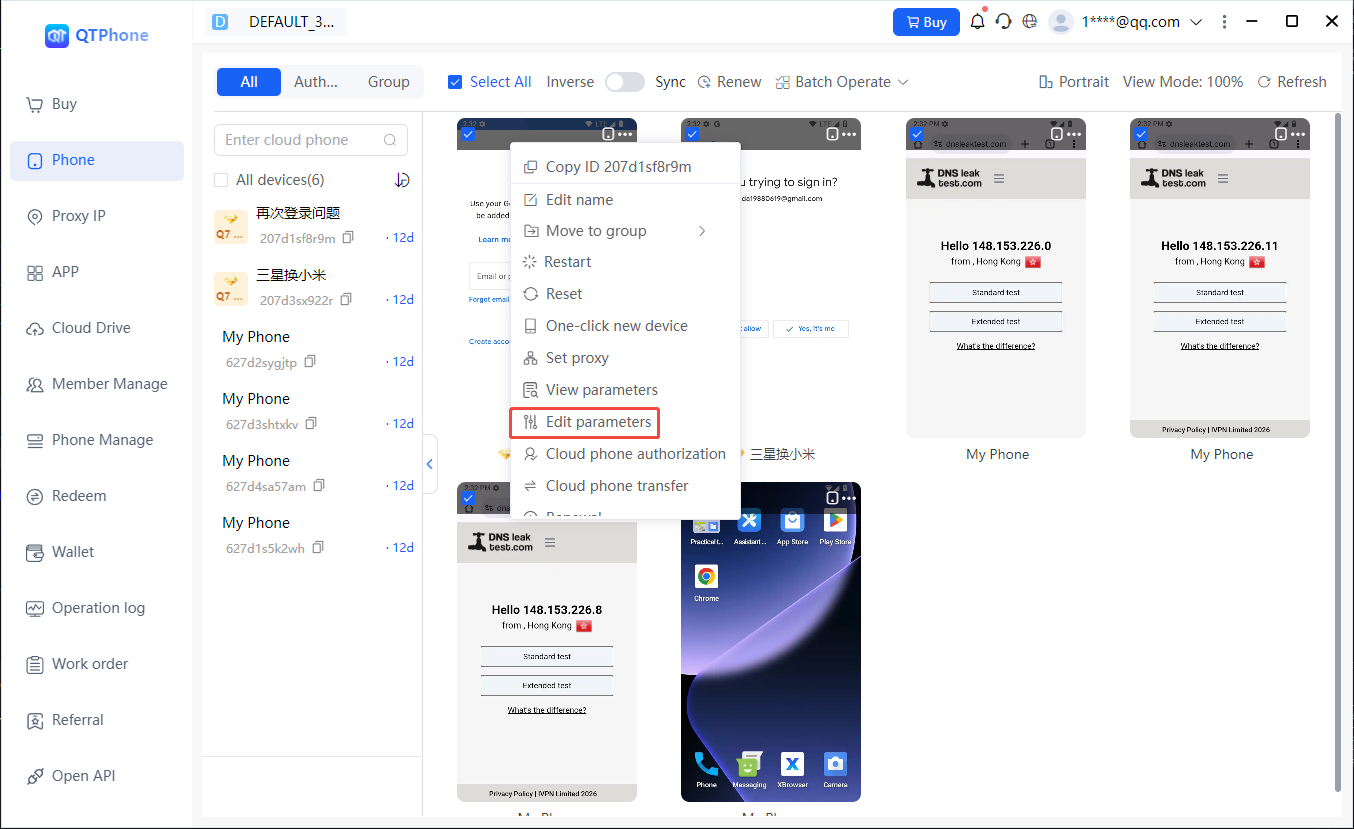
1. Modify Parameters for a Single Cloud Phone
- Go to the My Cloud Phones list;
- Find the target cloud phone and click Modify Parameters in the cloud phone operations;
- In the dialog, modify the geographic location, timezone, or system language;
- Confirm and wait for the change to complete.
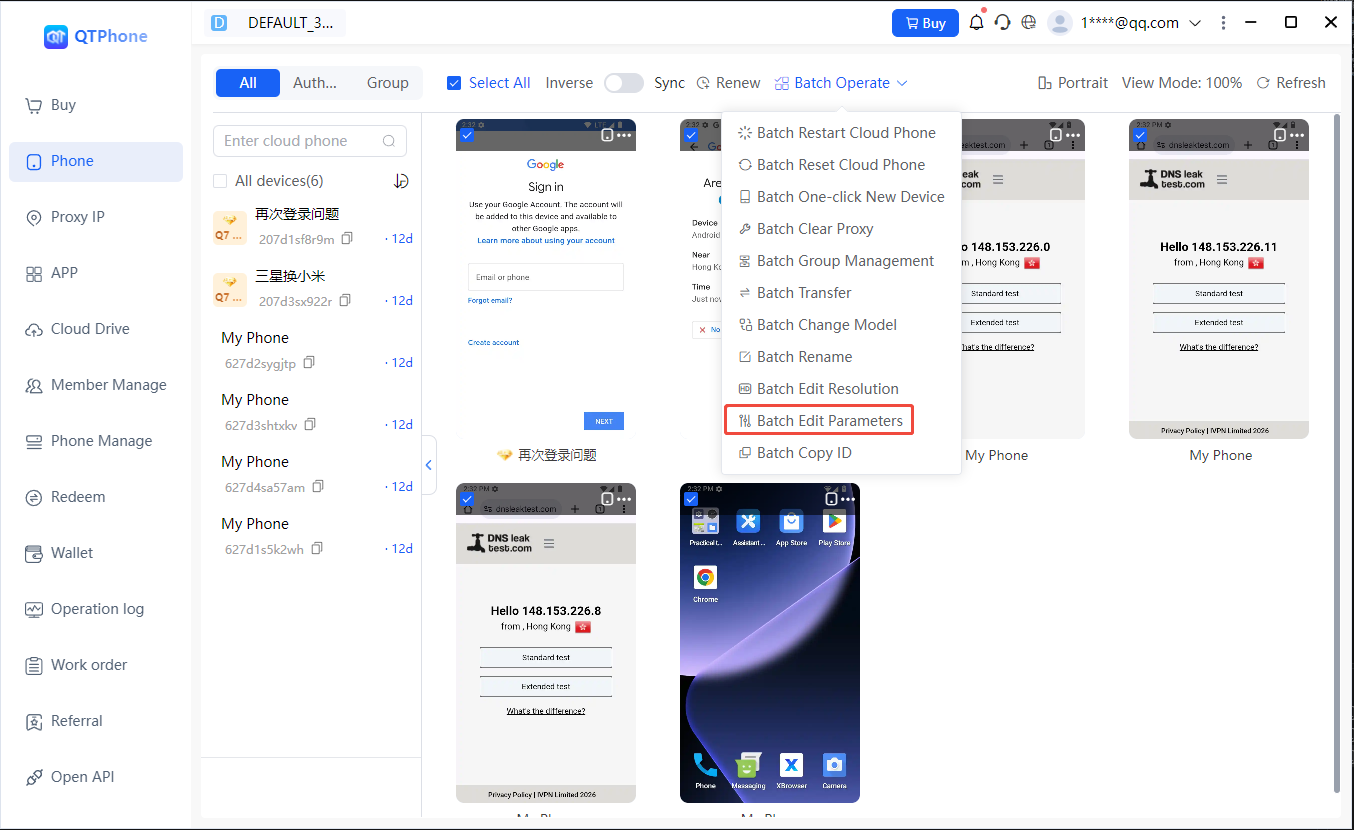
2. Batch Modify Parameters
- In the My Cloud Phones list, check the cloud phones to modify;
- Click Modify Parameters to apply the same parameters to the selected cloud phones;
- Confirm and execute; the changes take effect on the selected cloud phones one by one.
4. Notes
- By default, the coordinates are set automatically based on the cloud phone IP (auto location); to pin a fixed location, set it manually in the dialog;
- If a proxy is configured for the cloud phone, keep the timezone, language, and other parameters consistent with the proxy exit region to avoid a mismatch between the language/timezone and the exit IP region — see Set Cloud Phone Proxy;
- Modifying parameters does not affect the installed apps or data on the cloud phone.
5. FAQ
Q1: Does modifying parameters clear data? No. It only updates environment parameters such as timezone, language, and location, without affecting the apps and data on the cloud phone.
Q2: Can the coordinates be set automatically? Yes. Auto location is enabled by default, and the system sets the coordinates automatically based on the cloud phone IP; you can disable it and specify the longitude and latitude manually.
Q3: How do I confirm the change has taken effect? Check whether the target parameters have been updated via View Cloud Phone Parameters.
Q4: Do I still need to change the timezone and language if a proxy is configured? If IP simulation is enabled for the proxy, the system automatically simulates the language, location, SIM card, and base station information based on the proxy IP (see Set Cloud Phone Proxy); when manually modifying the timezone, language, and other parameters, keep them consistent with the proxy exit region.
Q5: How do developers modify parameters via the API? Use the Update Cloud Phone Config API with the container ID list and target parameters; batch operations are supported.