
Reboot Cloud Phone
Rebooting a cloud phone shuts it down and starts it up again. Rebooting retains all data on the cloud phone (installed apps, files, account login sessions, etc. are unaffected). It is the most common recovery action and a routine operation.
Note: Rebooting does not clear data; to restore factory settings and clear all data, see Reset Cloud Phone.
1. Feature Overview
Try rebooting a cloud phone first in the following situations:
- The cloud phone is laggy, black-screened, or frozen;
- An app is unresponsive, crashing, or frequently disconnecting;
- The cloud phone status appears abnormal and does not recover after refreshing.
Most runtime issues can be resolved by rebooting; if the issue persists after a reboot, consider Reset Cloud Phone.
What happens during a reboot:
- A reboot is expected to take 1–3 minutes;
- The cloud phone is temporarily offline during the reboot, and active connections are disconnected;
- After the reboot completes, wait 1–3 minutes before entering the cloud phone to ensure services are fully ready;
- Status changes during the process: Running → Rebooting → Running.
2. Prerequisites
- You have purchased a cloud phone, and it is visible in the My Cloud Phones list.
3. Steps
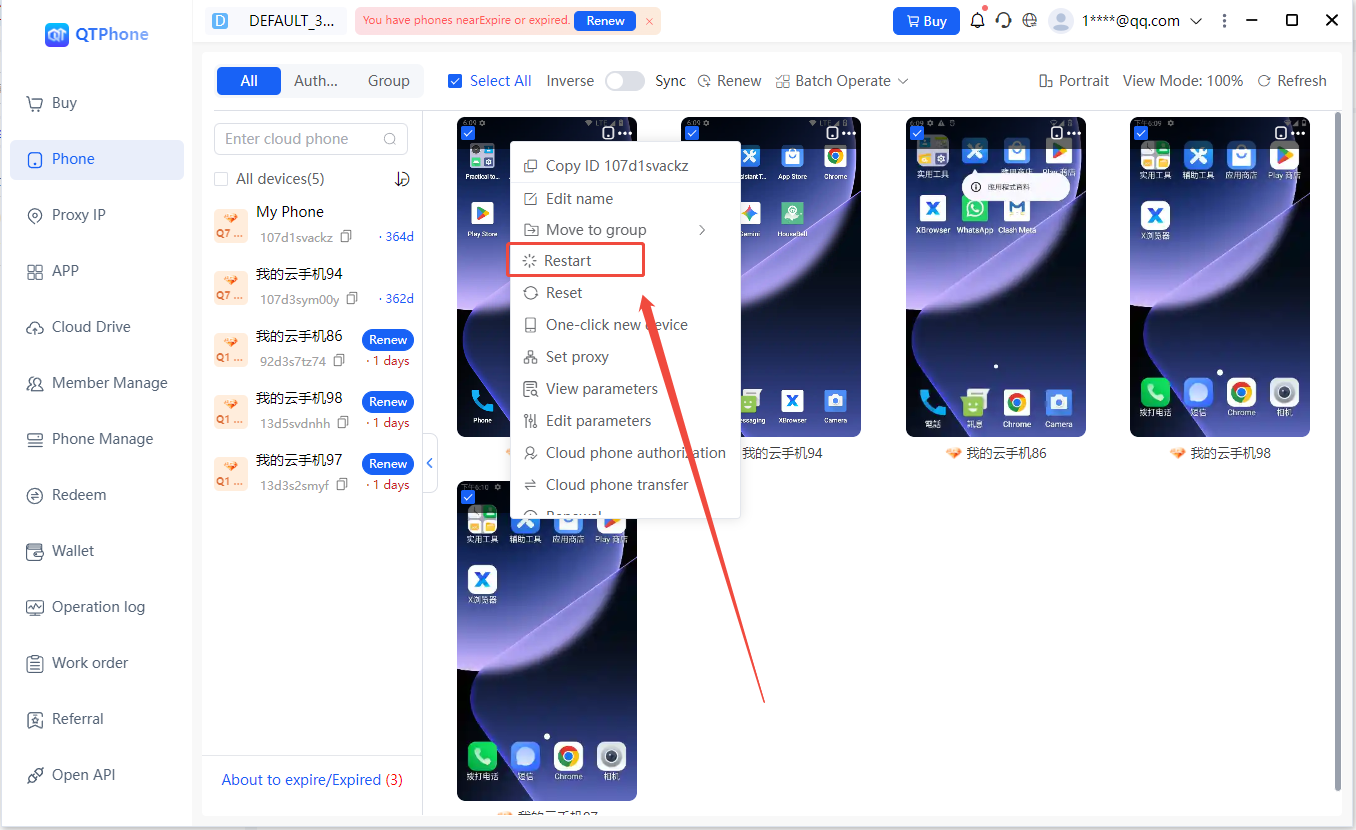
1. Reboot a Single Cloud Phone
- Go to the My Cloud Phones list;
- Find the cloud phone to reboot and click Reboot Cloud Phone in the cloud phone operations;
- Click OK in the confirmation dialog;
- Wait for the reboot to complete; the status returns to Running.
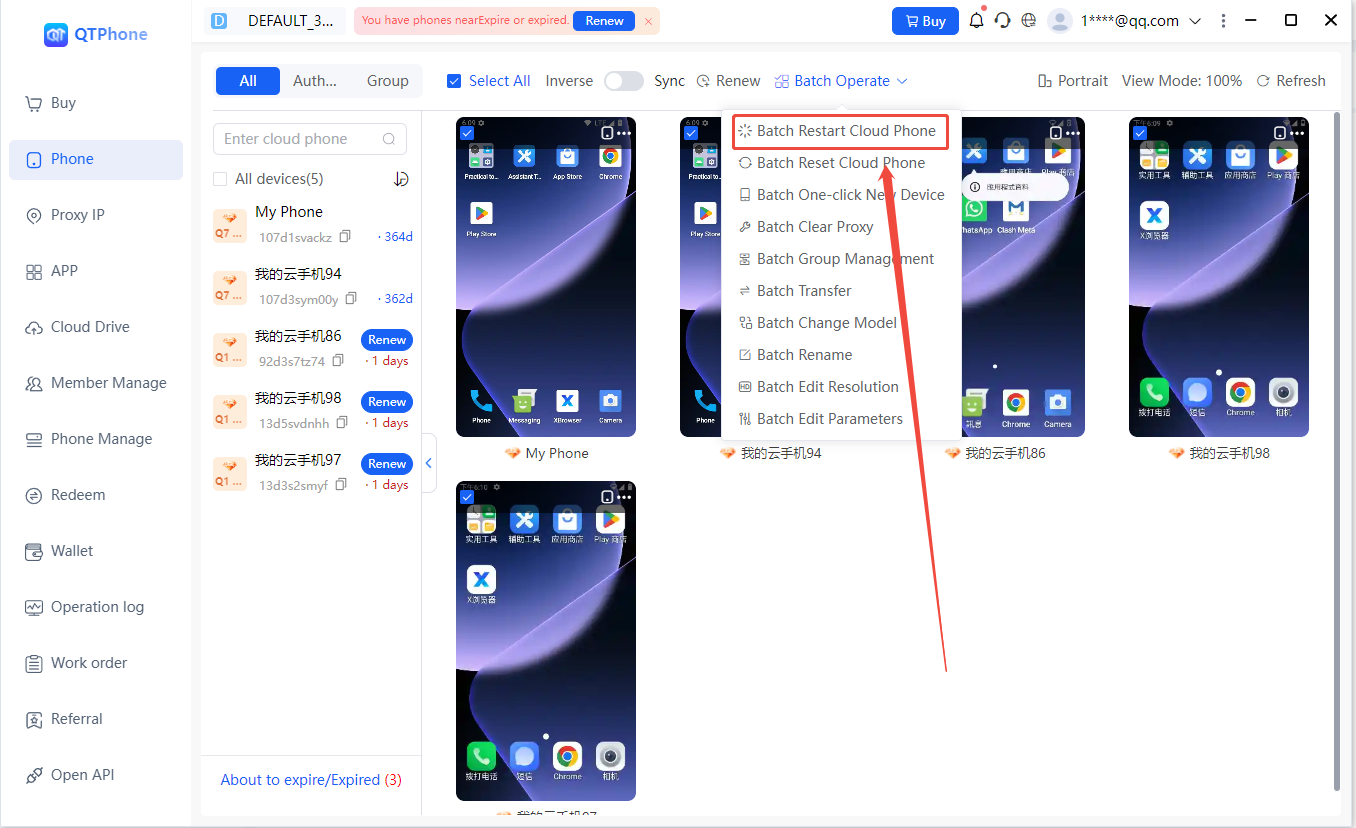
2. Batch Reboot
- In the My Cloud Phones list, check the cloud phones to reboot;
- Click Batch Reboot Cloud Phones above the list;
- Confirm the number of cloud phones to reboot; the selected cloud phones will reboot one by one.
4. Notes
- Rebooting does not delete apps or data on the cloud phone; no backup is needed;
- Do not perform other operations (such as installing apps or pushing files) on the same cloud phone during the reboot;
- Avoid peak business hours when rebooting;
- If the cloud phone is frequently laggy or abnormal and rebooting does not help, consider Reset Cloud Phone to restore factory settings.
5. FAQ
Q1: Does rebooting clear the data on the cloud phone? No. Rebooting only shuts down and restarts the cloud phone; apps, files, account login sessions, etc. are all retained.
Q2: What is the difference between reboot and reset? Reboot retains data and only restarts the cloud phone; reset restores factory settings and clears all data irrecoverably — see Reset Cloud Phone.
Q3: Can I use the cloud phone during a reboot? No. The cloud phone is temporarily offline and connections are disconnected during the reboot; wait 1–3 minutes after completion before entering it again.
Q4: What if the issue persists after a reboot? Try rebooting again; if it still does not work (for example, the system has crashed and cannot recover), consider Reset Cloud Phone or contact customer service for assistance.