
Set Cloud Phone Proxy
Setting a cloud phone proxy configures a proxy IP for the cloud phone so that its network traffic is forwarded through the specified proxy server, giving the cloud phone a fixed exit IP and the network environment of the target region. With IP simulation enabled, the system automatically simulates the language, location, SIM card, and base station information based on the proxy IP to improve environment consistency.
Supported proxy types: Socks5 and HTTP.
1. Feature Overview
- Proxy types: Socks5 and HTTP;
- Proxy information: proxy host and port, plus the username and password for authentication (not required for proxies without authentication);
- IP simulation: when enabled, the system automatically simulates the language, location, SIM card, and base station information based on the proxy IP;
- Proxy detection: you can run a connectivity check before saving, and apply the proxy once it is confirmed available.
2. Prerequisites
- A purchased cloud phone visible in the My Cloud Phones list;
- Proxy server information obtained (type, address, port, and authentication information).
3. Steps
1. Set a Proxy
- Go to the My Cloud Phones list;
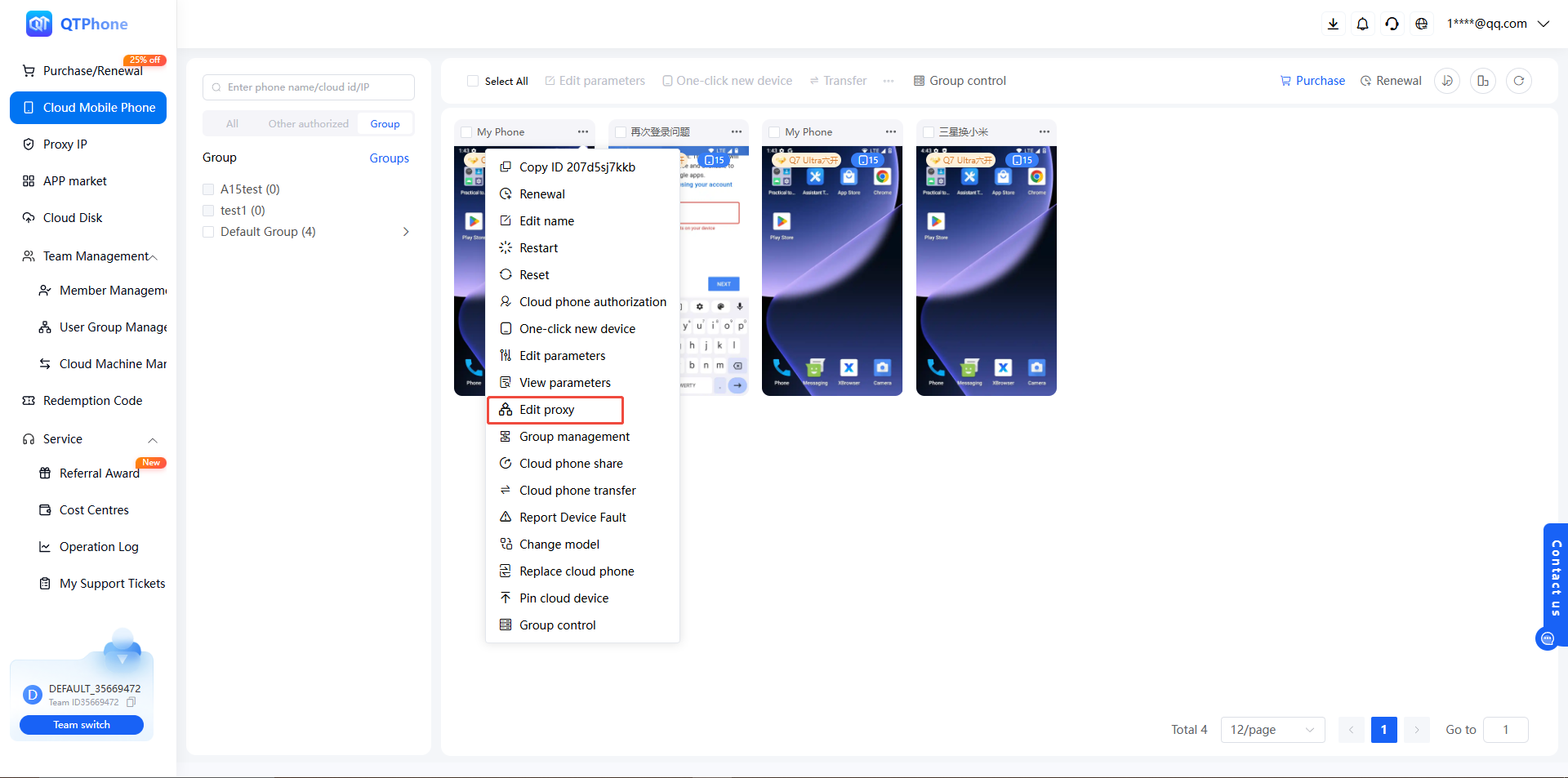
- Find the target cloud phone and click Set Proxy in the cloud phone operations;
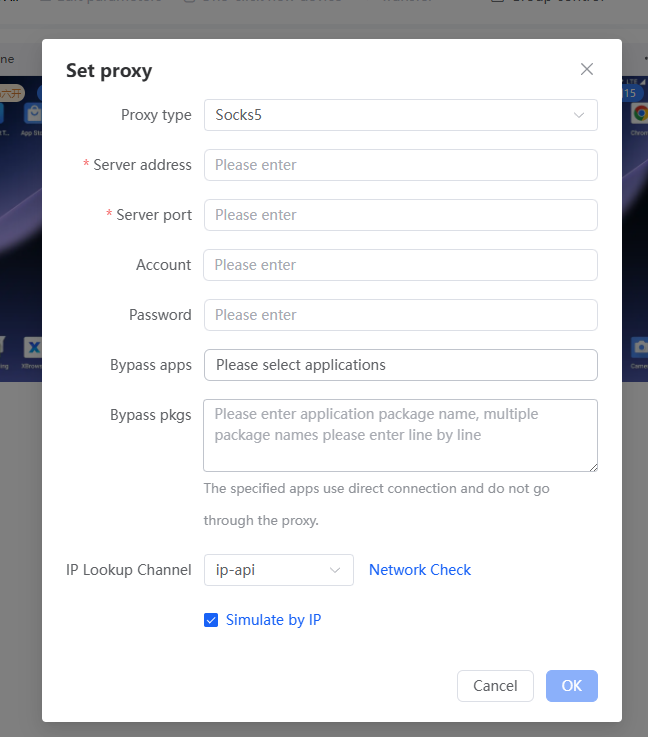
- In the dialog, select the proxy type (Socks5 or HTTP) and enter the proxy host and port;
- If the proxy requires authentication, enter the username and password;
- Enable IP Simulation as needed;
- Click Detect, and save once the proxy is confirmed available.
2. Disable the Proxy
- Open Set Proxy in the cloud phone operations;
- Click Disable Proxy and confirm; the cloud phone restores the default network.
4. Notes
- The proxy type must match what the proxy provider offers (choose Socks5 for a Socks5 proxy, HTTP for an HTTP proxy); otherwise the connection will fail;
- Make sure the proxy account is valid with sufficient traffic, and that the IP whitelist has been configured on the provider side;
- The proxy exit region should match the target business region; keep the cloud phone language and time zone aligned with the proxy exit region;
- Never expose a complete proxy password in support tickets, screenshots, or chat messages;
- An invalid proxy causes network failures on the cloud phone; configure health checks and backup routes for your proxy nodes.
5. FAQ
Q1: What should I do if proxy detection fails? Troubleshoot in this order: verify that the proxy host, port, username, and password are correct; check that the protocol type matches the provider's; confirm that the account is valid, has enough traffic, and is whitelisted on the provider side. See Proxy Detection Failed for details.
Q2: Should I choose Socks5 or HTTP? Follow the protocol provided by your proxy provider; selecting the wrong type will cause connection failures.
Q3: What does IP simulation do? When enabled, the system automatically simulates the language, location, SIM card, and base station information based on the proxy IP, keeping the cloud phone environment consistent with the exit IP region.
Q4: How do I view or manage the current proxy settings of a cloud phone? You can view the current configuration in the Set Proxy entry. Developers can also manage proxies programmatically via the OpenAPI: Get Cloud Phone Proxy Info, Set Cloud Phone Proxy, Disable Cloud Phone Proxy, and Batch Disable Cloud Phone Proxy.
Q5: How do I import my own proxies for centralized management? The Proxy IP module supports custom import, which lets you import your own proxies and bind them to cloud phones. See Purchase and Renew Proxy IPs.