
Cloud Phone Authorization
1. What Is Cloud Phone Authorization?
Cloud phone authorization is a feature that allows the owner of a cloud phone (the authorizer) to grant the operation, control, and viewing permissions of their cloud phone to another QTPhone account (the authorized party) for a set duration.
- After a successful authorization, the authorized account can operate, control, and view the cloud phone;
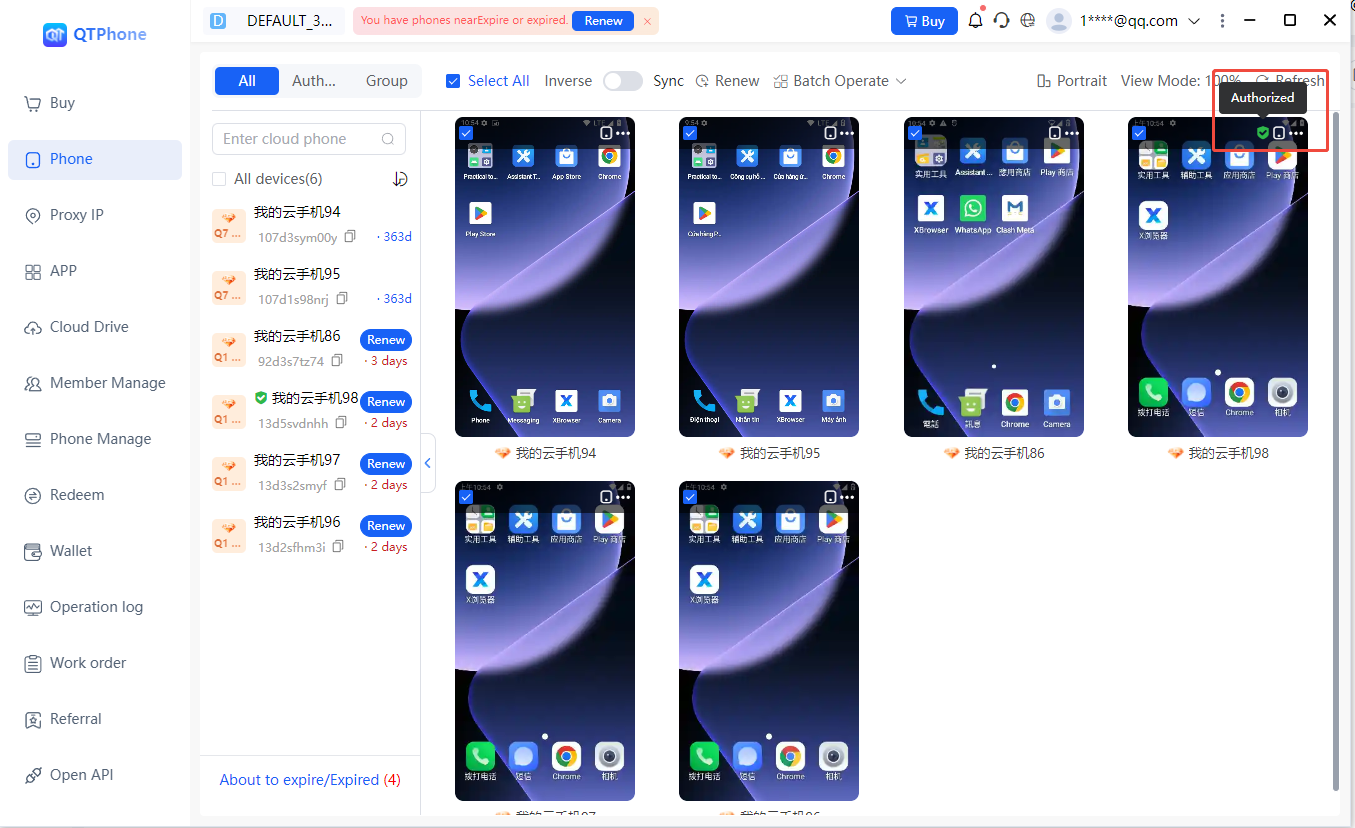
- Authorized cloud phones are marked as "Authorized" in the cloud phone list;
- Cloud phones authorized to you by others are displayed in My Cloud Phones → Authorized Group for easy viewing and access.
2. Why Authorize?
- When asking friends or colleagues to help debug, level up, or maintain your cloud phone, there is no need to share your account password directly — safer;
- When family or friends need to temporarily use games or apps on your cloud phone, you can authorize them to view or operate;
- When you need to uniformly assign usage permissions for multiple cloud phones, batch authorization is supported for efficiency.
3. How to Authorize a Cloud Phone
1. Authorizing a Single Cloud Phone
A single cloud phone can be authorized through either of the following entries:
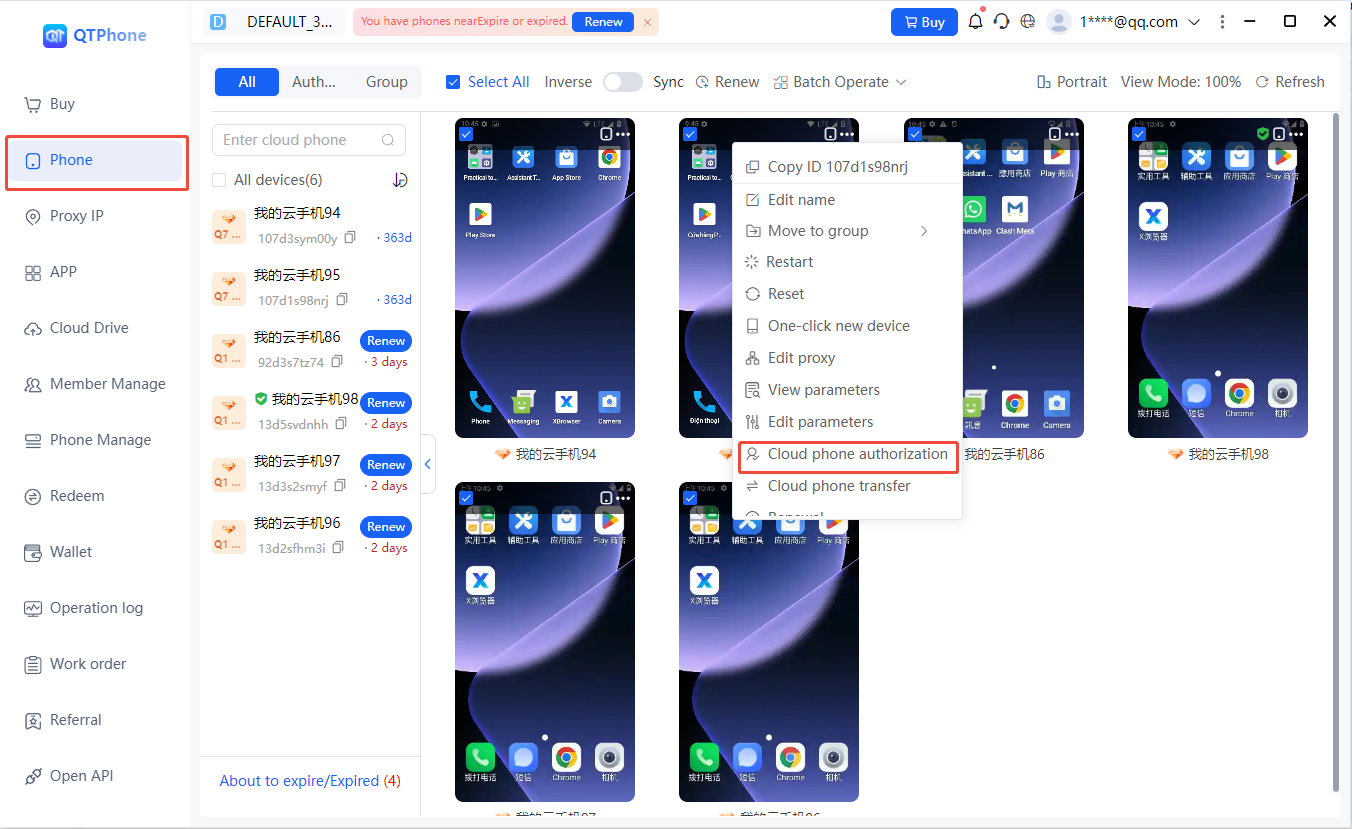
- Method 1: go to the My Cloud Phones list, select the cloud phone to authorize, and click the Authorize entry in the cloud phone operations;
- Method 2: click Authorize / Transfer in the menu bar, select the Authorize function, and select that cloud phone.
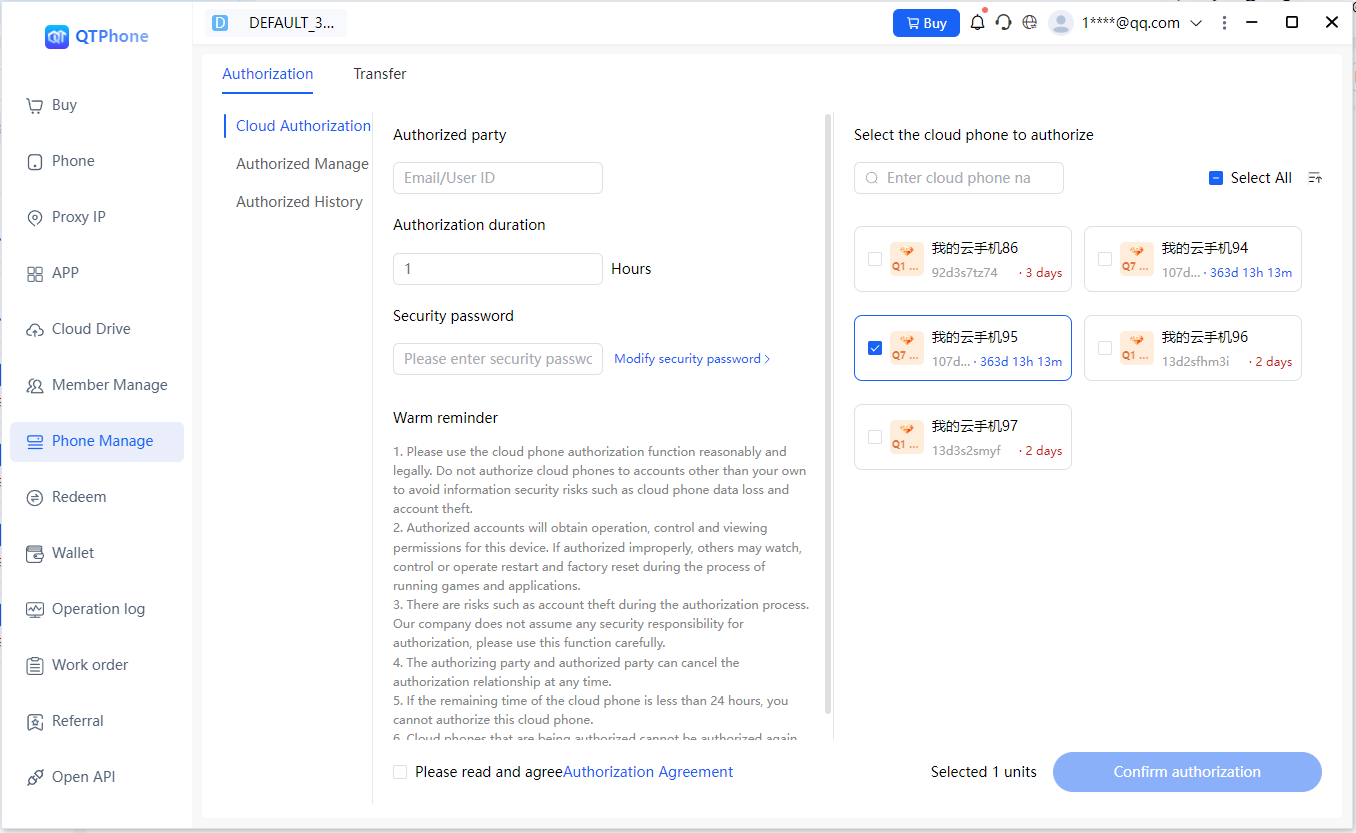
On the authorization page:
- Enter the authorized party's email or user ID (the authorized party must be a registered QTPhone account);
- Set the authorization duration (calculated in hours, minimum 1 hour);
- Confirm or set the security password;
- Confirm the authorization.
After a successful authorization, the cloud phone will display the "Authorized" label.
2. Batch Authorization
Batch authorization is only available through the menu bar entry:
- Click Authorize / Transfer in the menu bar and enter the Authorize function;
- In the cloud phone list, check one or more cloud phones to authorize;
- Enter the authorized party's account, the unified authorization duration (multiple cloud phones share the same duration), and the security password;
- Confirm the authorization to complete it in batch.
3. Authorization Prerequisites (Important)
- When a cloud phone has less than 24 hours remaining, it cannot be authorized;
- Cloud phones that are currently under authorization cannot be authorized again;
- The same cloud phone can only be authorized to one account at a time.
4. Setting and Changing the Security Password
The security password is used for authorization-related operations on your account and is an account-level setting.
- After registering a QTPhone account, the system does not automatically set a security password for you;
- You can set or change the security password on the authorization page;
- You can also go to the personal information page and click Change Password to set or change it;
- If you forget the security password, you can retrieve or reset it via a verification code sent to your registration email.
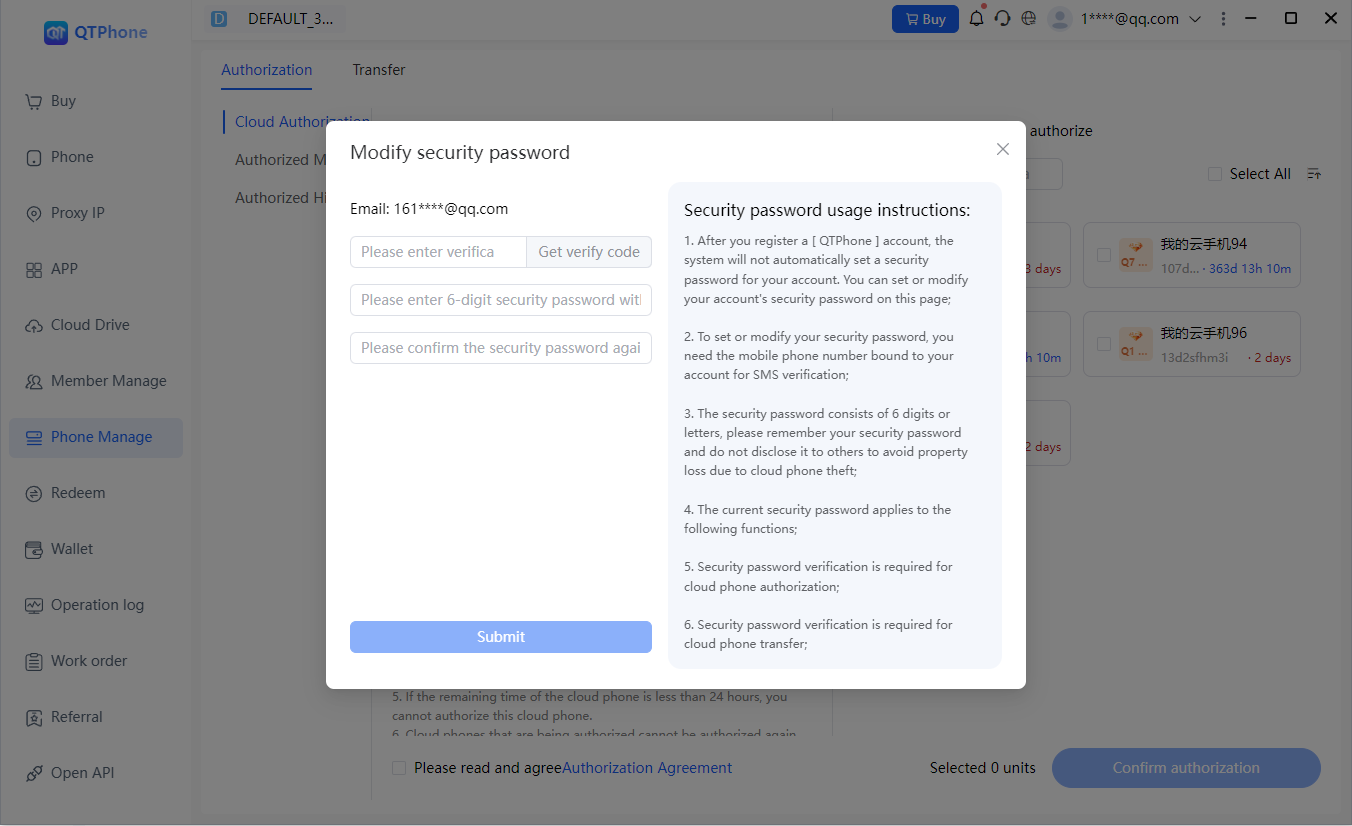
It is recommended to set the security password in advance to avoid the inconvenience of setting it during authorization.
5. How the Authorized Party Views Authorized Cloud Phones
- Cloud phones authorized to you by others are displayed in My Cloud Phones → Authorized Group;
- The authorized account has operation, control, and viewing permissions for the device;
- The authorized account cannot re-authorize the cloud phone to a third party;
- After authorization, the cloud phone displays the "Authorized" label for easy identification.
6. Authorization Management and Authorization History
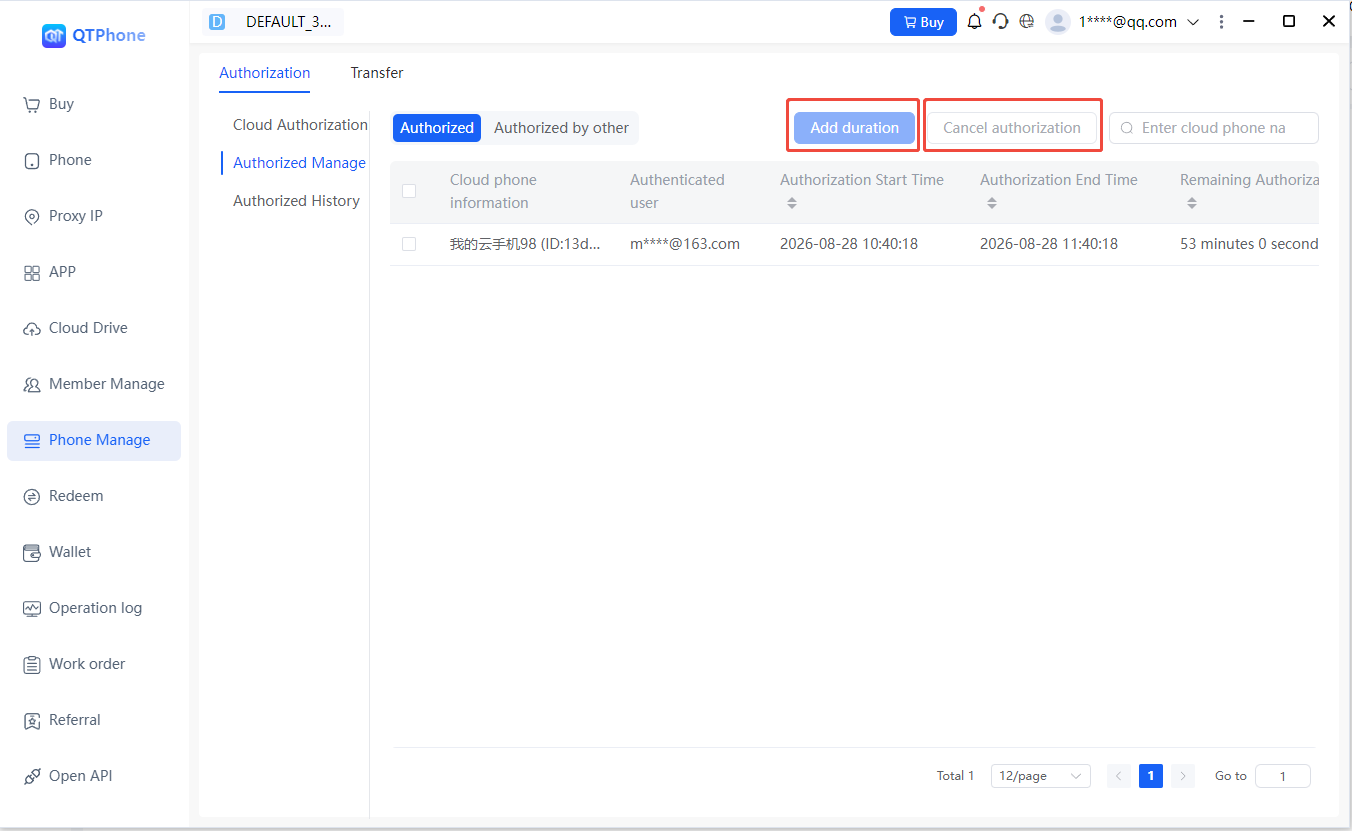
In Authorization Management on the Cloud Phone Authorization page, you can:
- View currently valid "authorized" and "authorized-to-me" information;
- In the upper-right corner of the page, extend the authorization duration or cancel the authorization for authorized cloud phones.
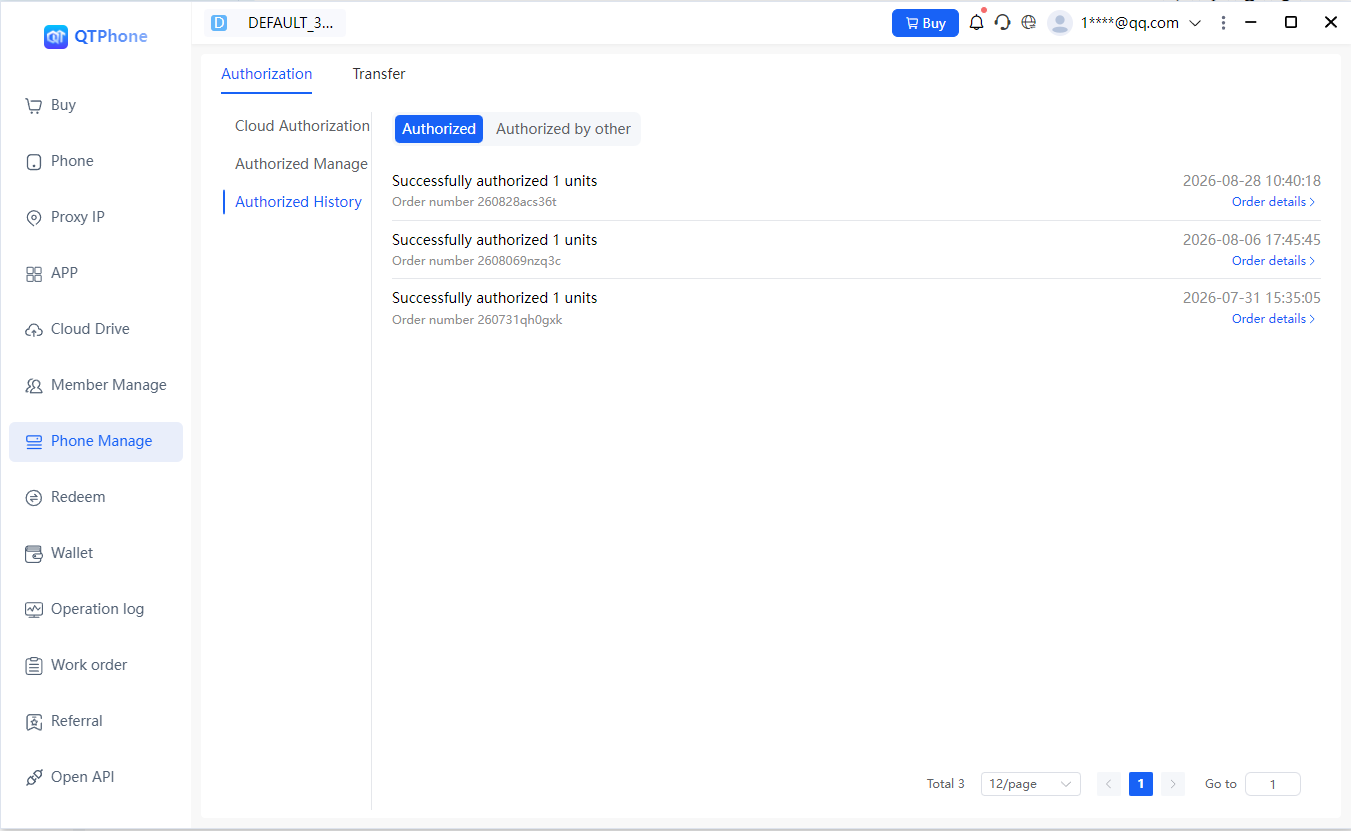
In the Authorization History page, you can view all historical authorization and authorization-received order records for traceability.
7. Authorization Rules and Risk Notice
- Use the cloud phone authorization feature reasonably and legally. Do not authorize cloud phones to accounts other than your own, to avoid security risks such as cloud phone data loss and account theft.
- The authorized account will obtain the operation, control, and viewing permissions of the device. Improper authorization may allow others to view, control, or perform operations such as restart or factory reset while you are running games or apps.
- There are risks such as account theft during authorization. The company assumes no security liability arising from authorization; please use this feature with caution.
- The authorizer and the authorized party can cancel the authorization at any time.
- When a cloud phone has less than 24 hours remaining, it cannot be authorized.
- Cloud phones currently under authorization cannot be authorized again.
- Authorizations expire automatically when the duration ends; no manual cancellation is needed. To continue use, you can extend the authorization duration in Authorization Management.
- The authorized account cannot re-authorize the cloud phone to a third party.
8. FAQ
- Why can't I authorize a cloud phone? The cloud phone may have less than 24 hours remaining, or it may already be under authorization.
- What happens when an authorization expires? The authorization becomes invalid automatically; to continue use, extend the authorization duration in Authorization Management.
- Where can I view cloud phones authorized to me? View them in My Cloud Phones → Authorized Group.
- What if I forget my security password? Retrieve or reset it via a verification code sent to your registration email.