
Group Control
The group control function supports unified batch control of multiple cloud phones, enabling synchronized operations, batch install / launch / stop / uninstall of apps, batch input, and more. It helps you complete tasks in batch in multi-account operation scenarios and improves management efficiency.
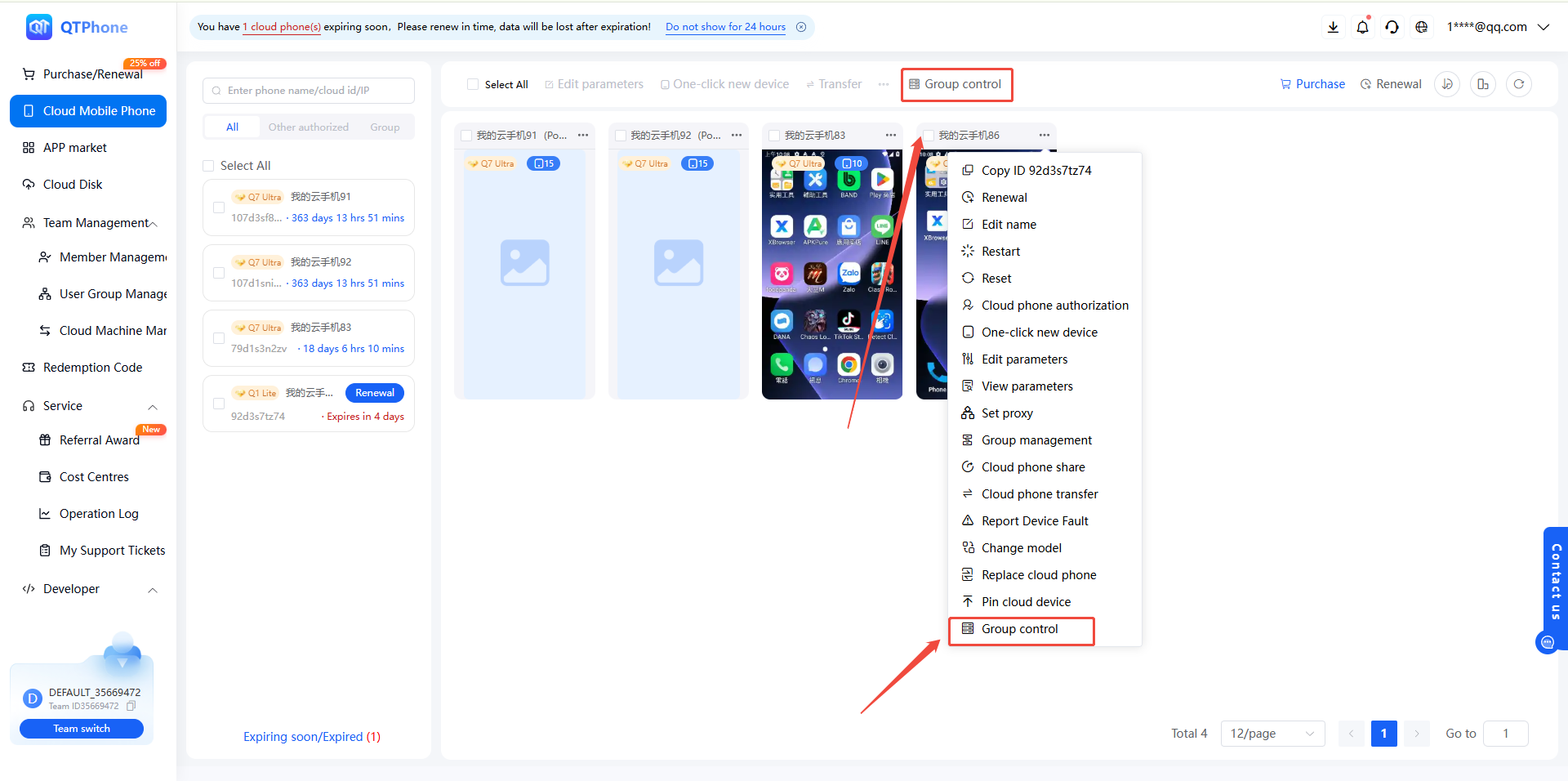
1. Enter Group Control
There are two ways to enter:
- Method 1: click Group Control above the cloud phone list;
- Method 2: click Group Control in the upper-right corner of a cloud phone.
Scope note: when entering group control from a specific cloud phone, the group control scope includes that cloud phone by default; when entering from above the cloud phone list, no cloud phones are included by default and you must select them yourself.
2. Select Cloud Phones for Group Control
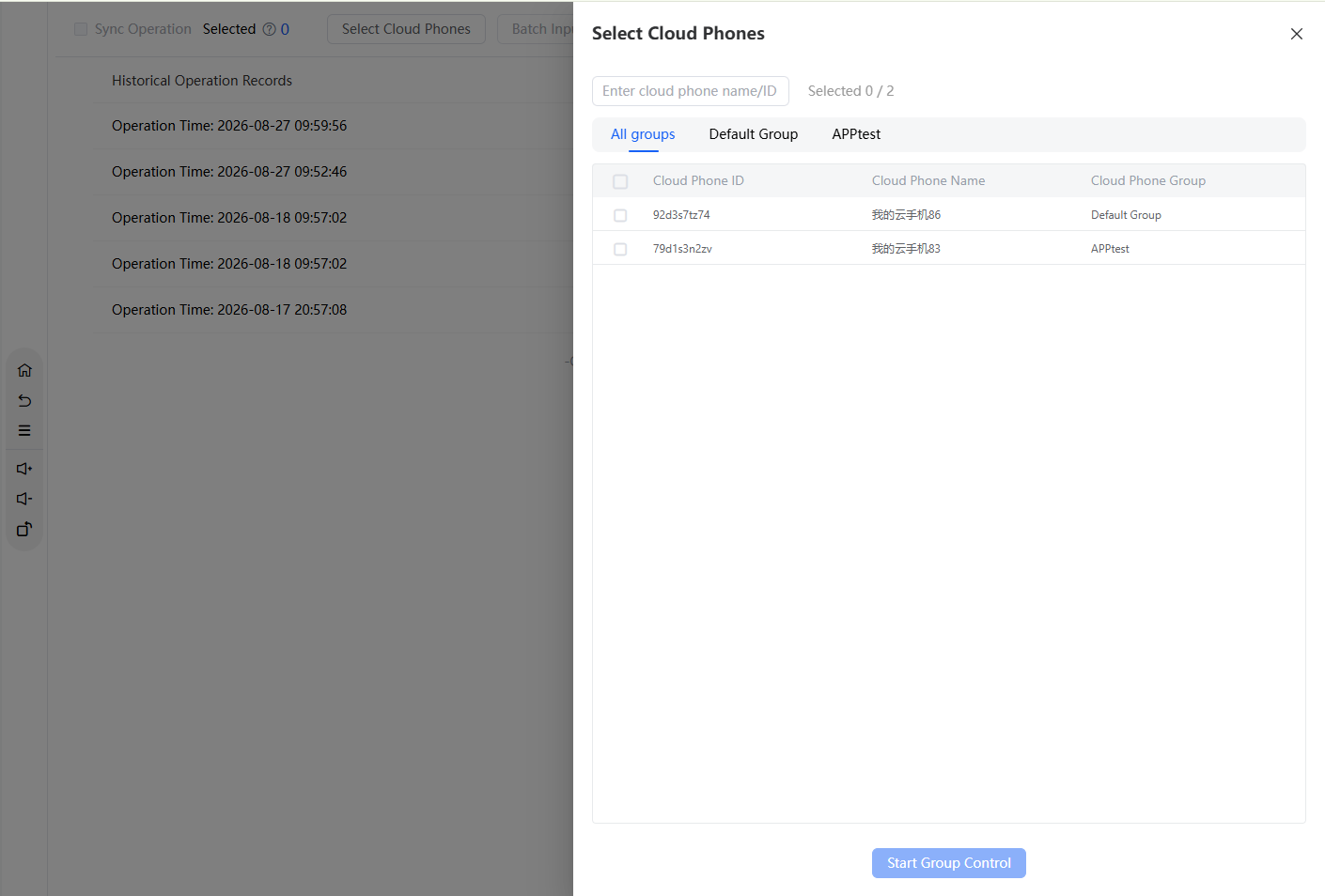
After entering the group control page, you can select the cloud phones to control in the following ways:
- History: if previously controlled cloud phones are still online, you can select a set of group control cloud phones from the history to continue operating (only the last 5 group control records are retained);
- Select Cloud Phones: click Select Cloud Phones and select by group — all groups, the default group, and custom groups are supported;
- Search: on the Select Cloud Phones page, you can search by cloud phone name / ID;
- Selection method: you can batch select by group or individually select cloud phones.
3. Group Control Operations
Batch Operations
After group control is established, click Batch Operations to perform the following on the controlled cloud phones in batch:
- Install apps
- Launch apps
- Stop apps
- Uninstall apps
Synchronized Operations
- Synchronize Operations is checked by default for controlled cloud phones; operations on the master cloud phone are synchronized to all cloud phones with synchronization checked;
- If you uncheck Synchronize Operations for a cloud phone, it temporarily exits group control synchronization, and operations on the master cloud phone will not be synchronized to it;
- To restore synchronization, simply check it again — no need to re-enter group control;
- During group control, you can switch the master cloud phone and also operate individual cloud phones separately.
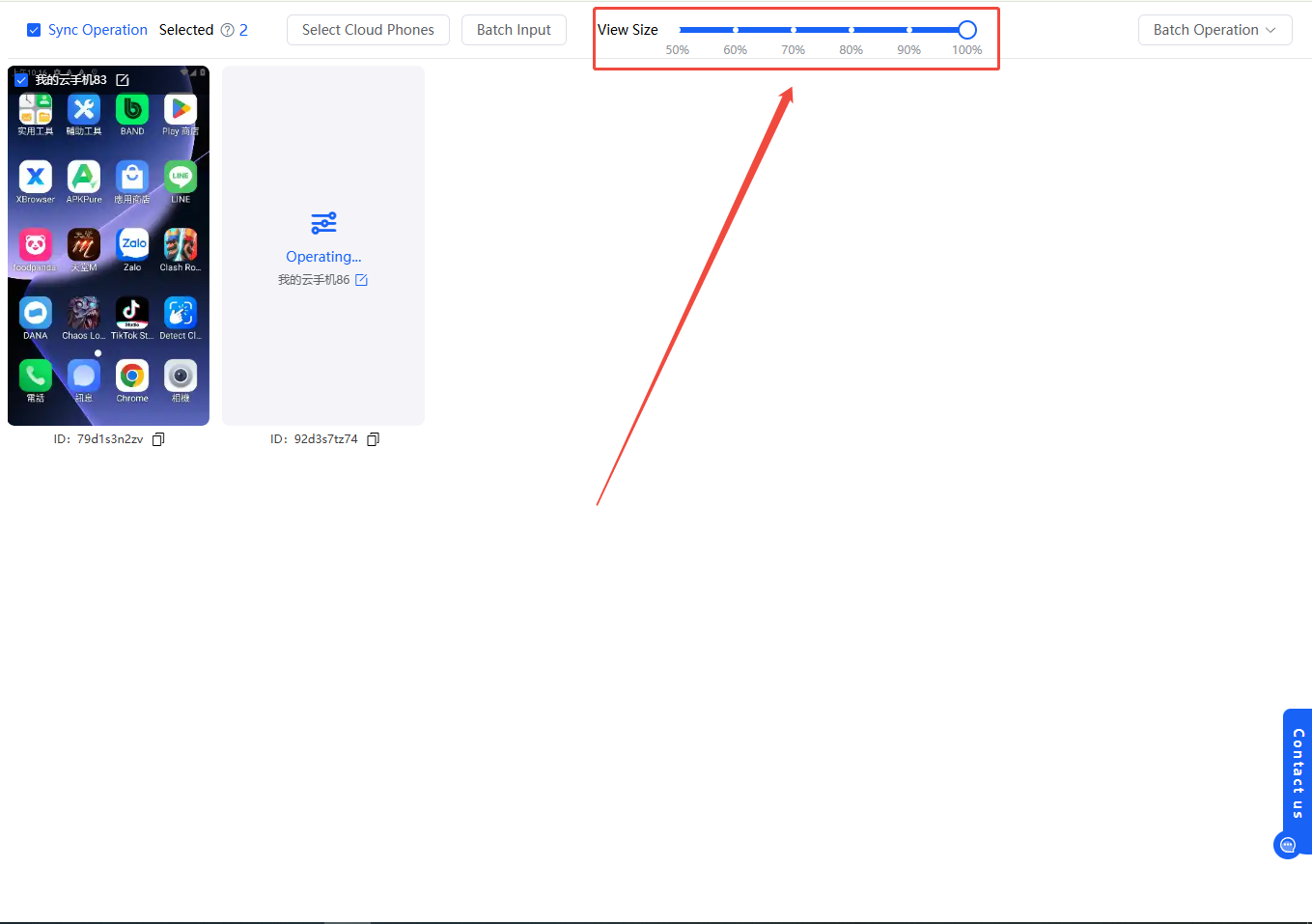
View Size
Adjust the view size to change the display scale of the cloud phone screens in the group control list.
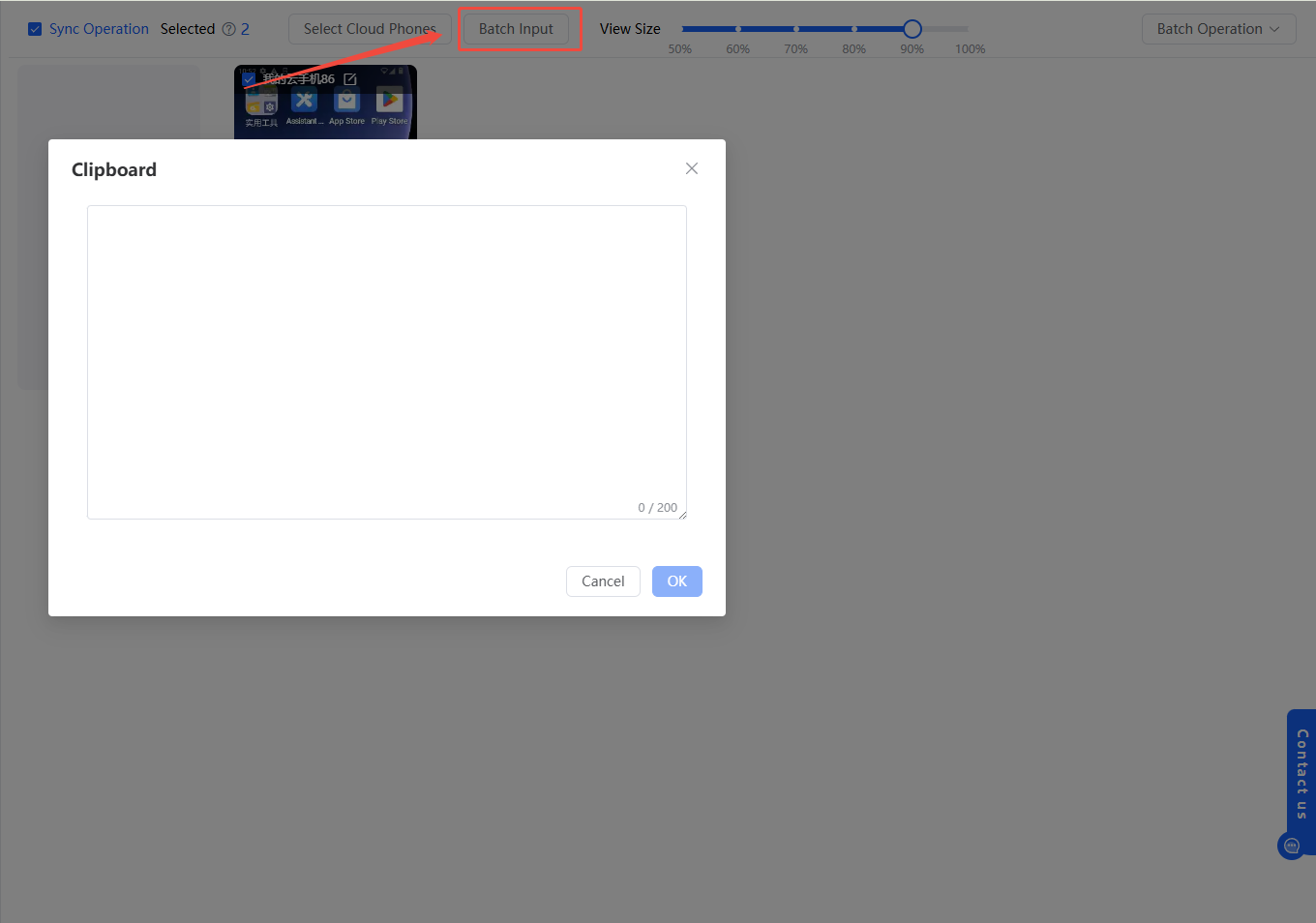
Batch Input
Click Batch Input; the entered content will be synchronized to the clipboard of all controlled cloud phones, and users can paste it directly within the cloud phones.
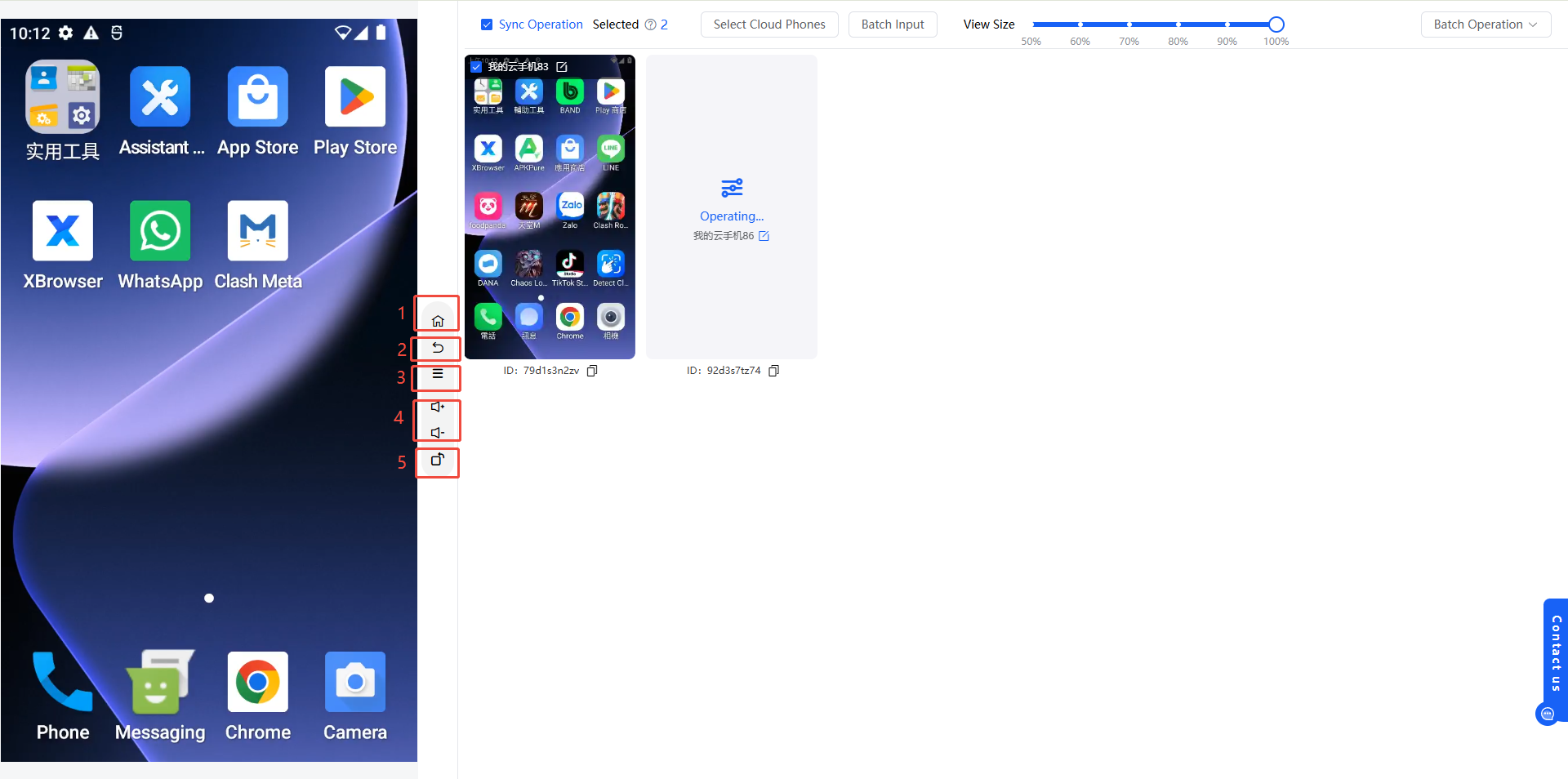
4. Cloud Phone Function Keys
The group control interface provides the following function keys, whose operations are synchronized to all controlled cloud phones:
- Cloud phone Home key
- Cloud phone Back key
- Cloud phone Recent Apps key
- Cloud phone volume up/down keys
- Cloud phone screen rotation key
5. Tips
- Before group control, confirm that the selected cloud phones are in a normal state to avoid affecting batch operation results;
- After unchecking Synchronize Operations for a cloud phone, it will temporarily not synchronize; pay attention to the current synchronization status;
- Before batch installing / uninstalling apps, confirm that the apps come from reliable sources.
6. FAQ
Q1: Is there a limit on the number of cloud phones in group control? No. You can select as many cloud phones as needed for group control.
Q2: Can I temporarily operate only one cloud phone during group control? Yes. After unchecking Synchronize Operations for that cloud phone, it temporarily exits synchronization, and operations on the master cloud phone will not be synchronized to it; check it again to restore synchronization.
Q3: Where is the batch input content synchronized? The entered content is synchronized to the clipboard of all controlled cloud phones, and users can paste it directly within the cloud phones.
Q4: How long are group control history records retained? Only the last 5 group control records are retained; older records are overwritten beyond that.