
Reset Cloud Phone
Resetting a cloud phone restores it to factory settings. After the reset, the operating system returns to its initial state, and all data on the cloud phone is cleared, including installed apps, files, account login sessions, etc. The cleared data cannot be recovered.
⚠️ Warning: The reset operation is irreversible. Before executing it, confirm that there is no data on the cloud phone that needs to be retained. If you only need to restart the cloud phone (retaining data), see Reboot Cloud Phone.
1. Feature Overview
Consider resetting a cloud phone in the following situations:
- The cloud phone system has crashed or is severely abnormal and does not recover after a reboot;
- The cloud phone needs to be recycled for reuse by a new business or account;
- You need to thoroughly clear the apps, files, and account data on the cloud phone.
Resetting is a low-frequency, last-resort operation. For general issues such as lag or black screens, prefer Reboot Cloud Phone first.
Impact of reset:
| Item | After Reset |
|---|---|
| Installed apps | All cleared; must be reinstalled |
| Files on the cloud phone | All cleared; cannot be recovered |
| App account login sessions | All logged out; must log in again |
| Remaining duration and plan of the cloud phone | Unaffected |
| Management settings such as groups and cloud phone name | Retained |
2. Prerequisites
- You have purchased a cloud phone, and it is visible in the My Cloud Phones list.
3. Steps
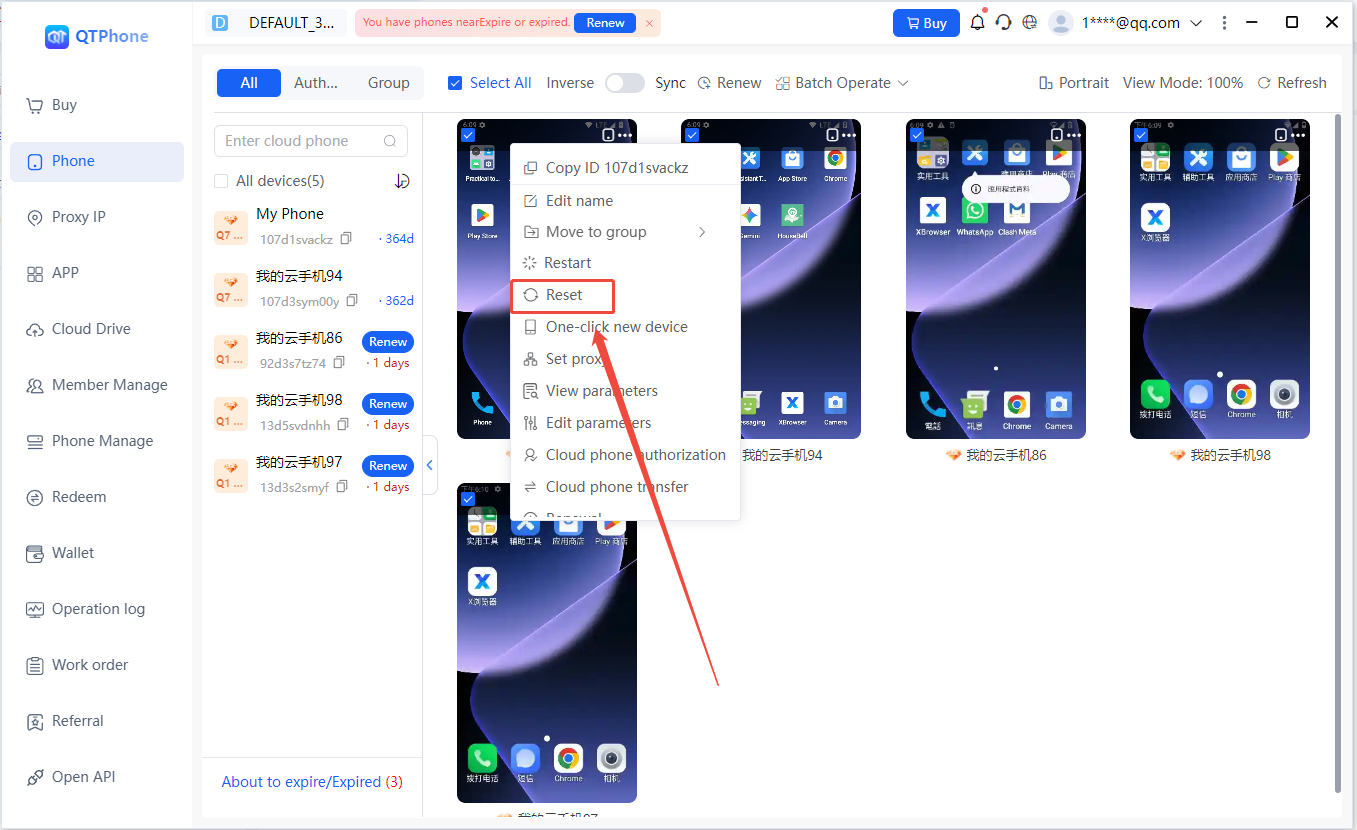
1. Reset a Single Cloud Phone
- Go to the My Cloud Phones list;
- Find the cloud phone to reset and click Reset Cloud Phone in the cloud phone operations;
- Read the data clearing warning carefully in the dialog;
- Confirm to execute the reset; the cloud phone status changes to Resetting;
- Wait for the reset to complete; the cloud phone returns to factory settings and powers on automatically, ready for direct use.
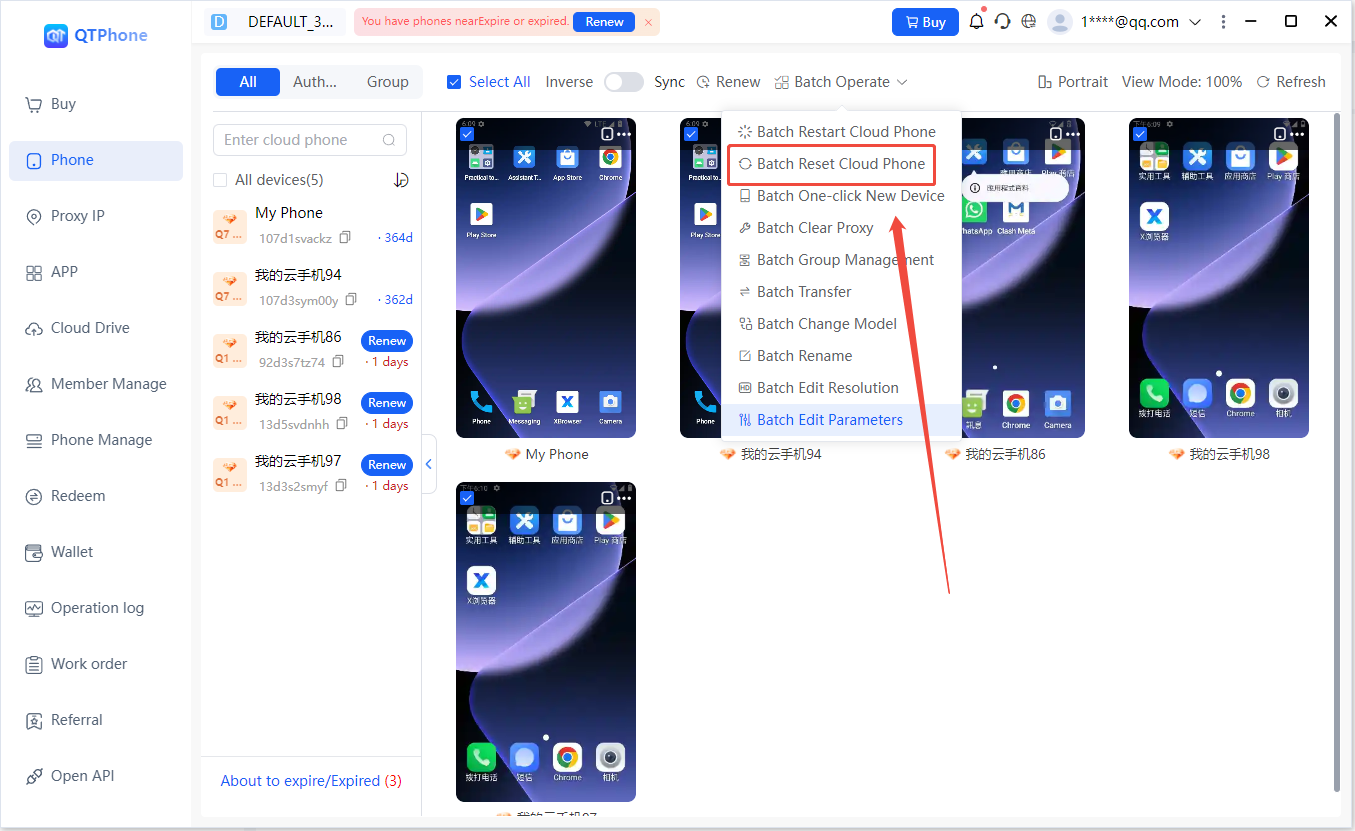
2. Batch Reset
- In the My Cloud Phones list, check the cloud phones to reset;
- Click Batch Reset Cloud Phones above the list;
- Read the data clearing warning, confirm the number of cloud phones to reset, and execute; the selected cloud phones will reset one by one.
4. Notes
- A reset is expected to take 1–3 minutes;
- Resetting is irreversible; back up important data on the cloud phone before executing (export via download, etc.);
- When batch resetting, confirm one by one that the selected cloud phones contain no data to retain;
- The cloud phone is unavailable during the reset; do not perform other operations;
- Pre-installed apps (if any) will be restored after the reset according to pre-installation rules.
5. FAQ
Q1: Can data be recovered after a reset? No. Resetting clears all data on the cloud phone irrecoverably; be sure to back up in advance.
Q2: Does a reset affect the remaining duration of the cloud phone? No. Resetting only clears the data on the cloud phone; the remaining duration and plan are unaffected.
Q3: What is the difference between reset and reboot? Reboot only restarts the cloud phone and retains data; reset restores factory settings and clears all data irrecoverably — see Reboot Cloud Phone.
Q4: Will the cloud phone automatically power on after a reset? Yes. After the reset completes, the cloud phone powers on automatically and is ready for direct use.
Q5: Will the data be cleared immediately after the cloud phone expires? No. Data is retained for 2 hours after the cloud phone expires, during which you can renew to continue using it. If it is not renewed within 2 hours, the cloud phone will be reclaimed and its data cleared — renew in time or back up your data in advance.