
Invite Members
You can invite other users to join your team in two ways: invite by user ID and invite by link. After a successful invitation, the invitee joins your (the inviter's) default team and can switch or leave on their own afterwards.
1. Feature Overview
- You can invite other users to join your team in two ways: invite by user ID and invite by link;
- You can choose to invite them as an administrator or a member;
- After a successful invitation, the invitee joins your (the inviter's) default team and can switch or leave on their own afterwards;
- For link invitations, members only officially join the team after the inviter approves the application in the message center.
2. Prerequisites
- You have signed in to the platform;
- A team has been created (every account comes with a default team).
3. Steps
1. Enter the Invitation Page
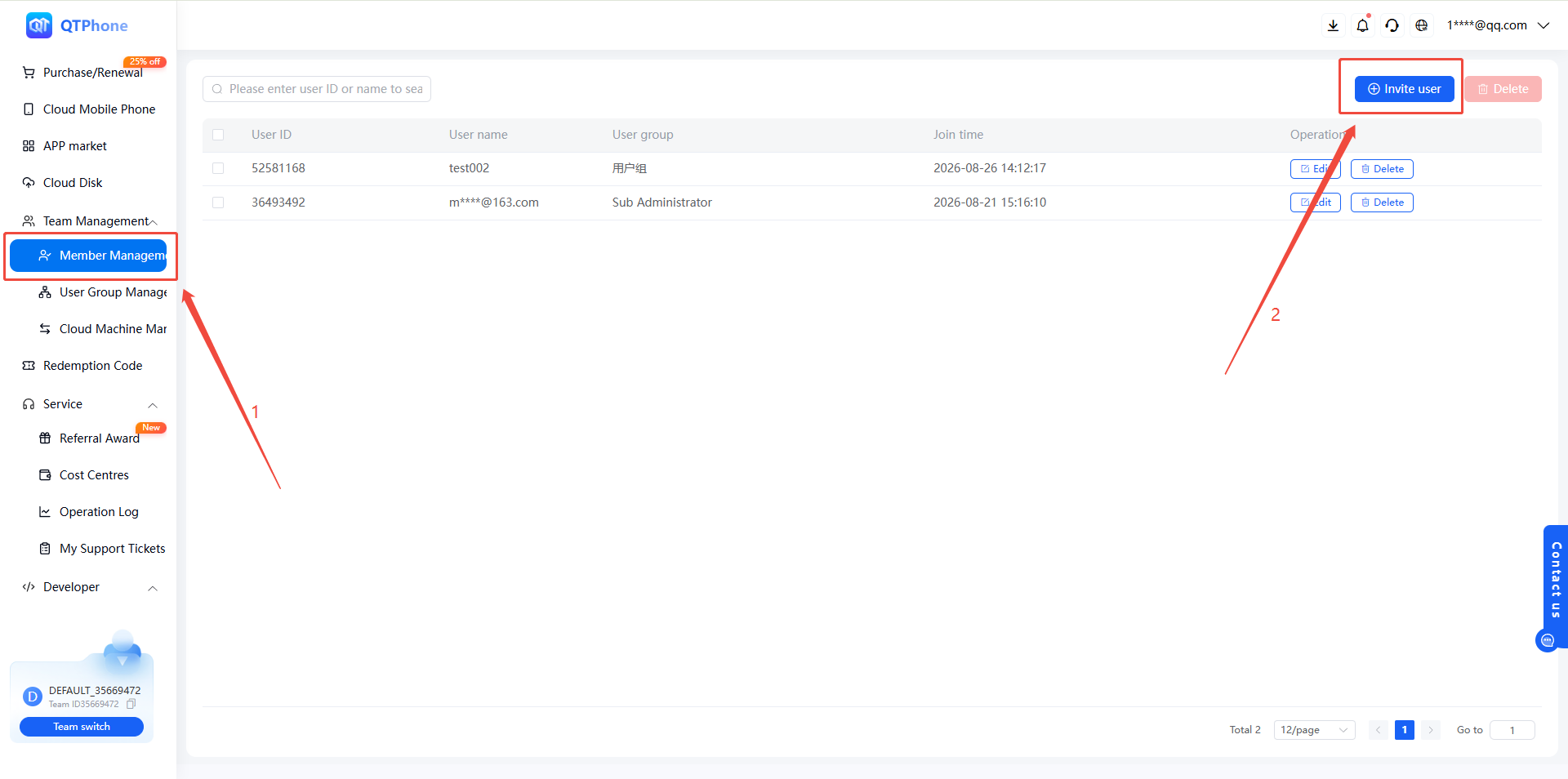
- After signing in to the platform, click Team Management in the left menu bar;
- Click Invite Users in the upper-right corner of the page to enter the invitation page.
2. Invite by User ID
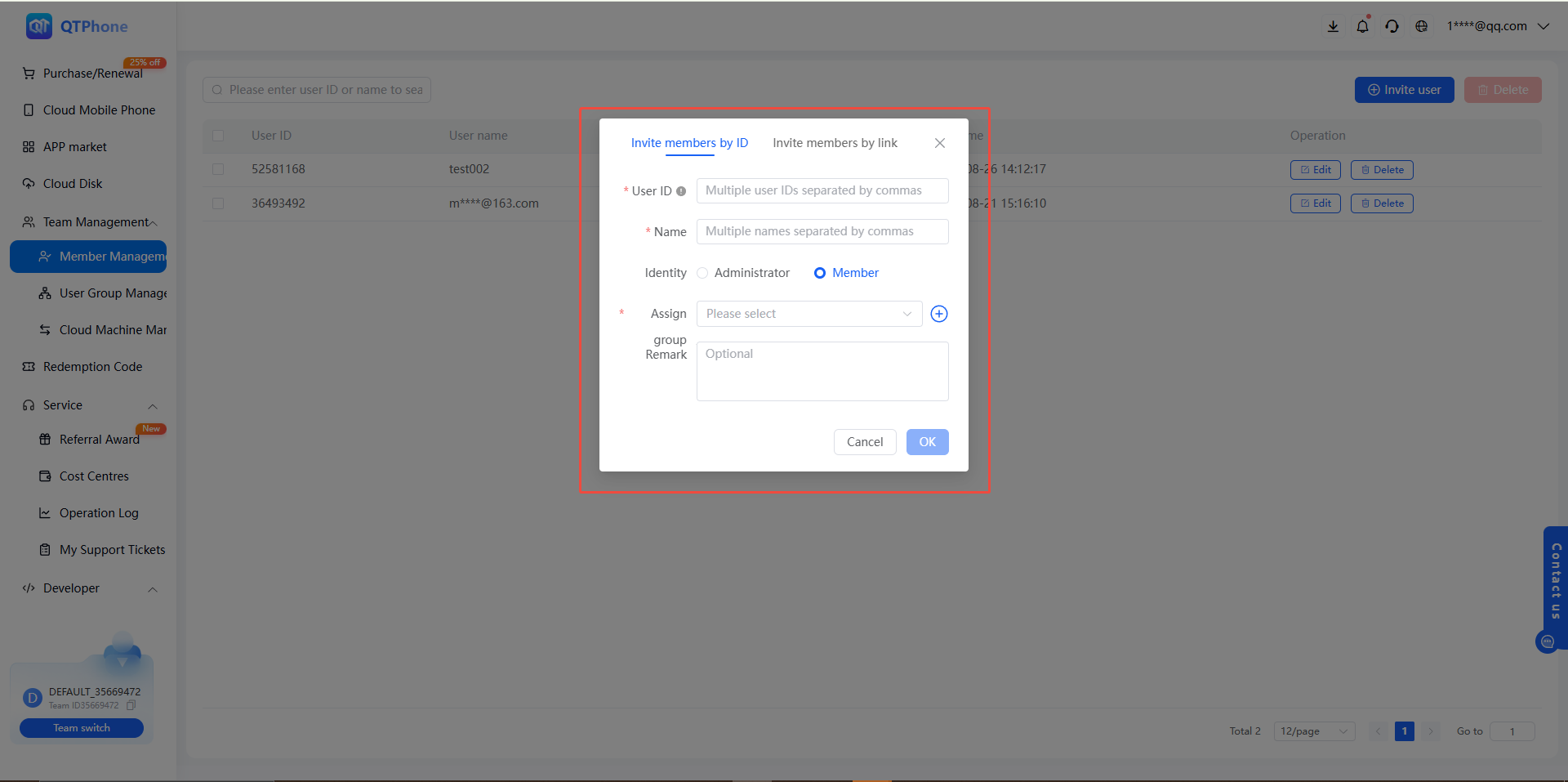
Enter the other party's user ID to send an invitation directly. You can choose to invite them as an administrator or a member.
Invite as an Administrator
- Select Invite by User ID as the invitation method;
- Enter the other party's user ID;
- Select Administrator as the role;
- Confirm and send the invitation.
Invite as a Member
- Select Invite by User ID as the invitation method;
- Enter the other party's user ID;
- Select Member as the role;
- In the user group drop-down list, assign the user to a user group.
3. Invite by Link
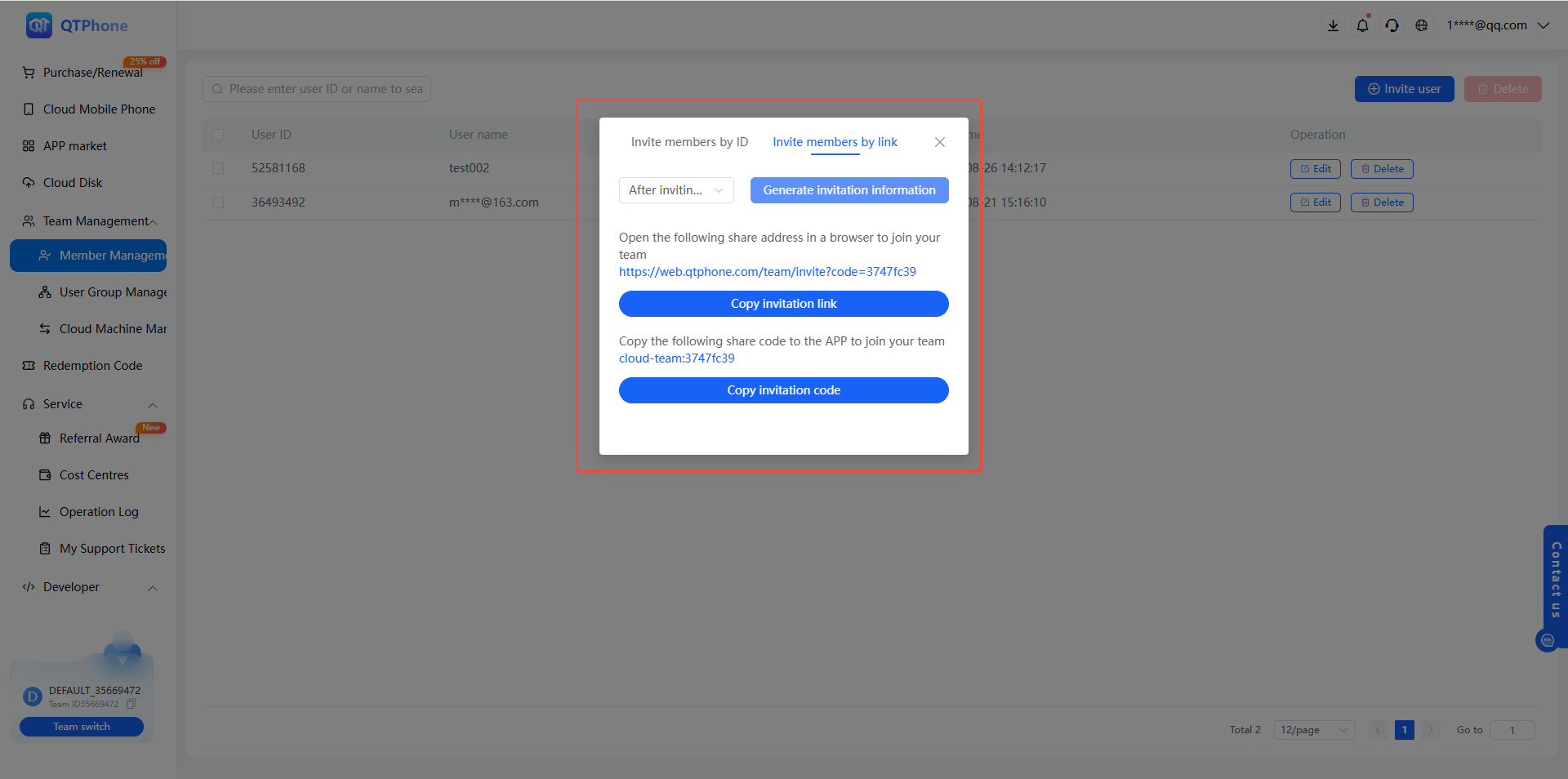
Generate a dedicated invitation link or share code to let the invitee apply to join the team on their own.
Generate an Invitation Link
- Select Invite by Link as the invitation method;
- Select the invitation role based on your needs:
- Administrator invitation link: the invitee will become a team administrator after joining;
- Member invitation link: the invitee will become a team member after joining;
- Copy the generated invitation link or share code and send it to the invitee.
Invitee Joining Process
- Web: open the invitation link → sign in to the account → click Agree to Join Team → wait for review;
- App: copy the share code → open the platform app (the share code is auto-filled) → sign in to the account → click Agree to Join Team → wait for review.
4. Review Member Applications
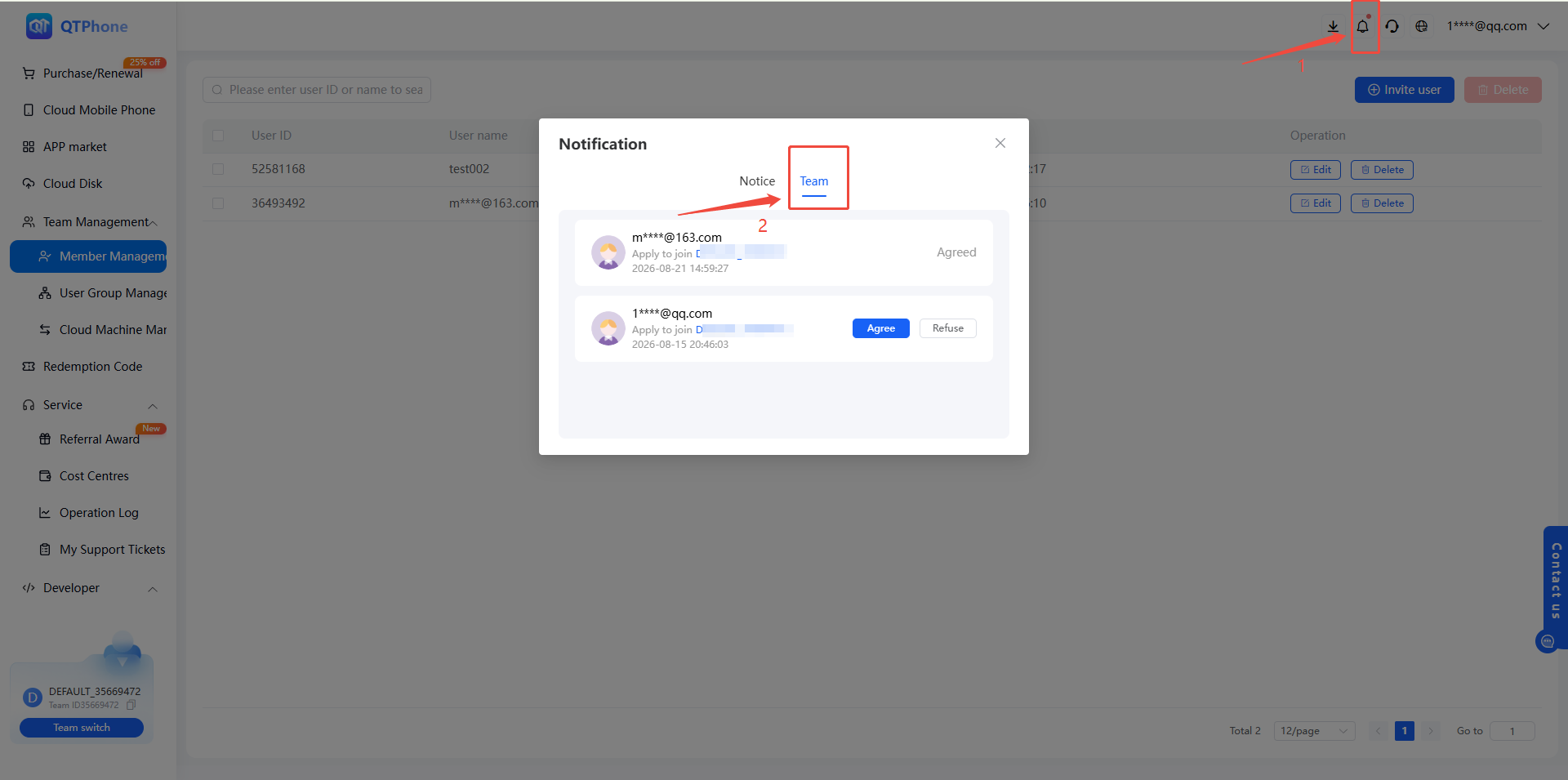
- After the invitee submits an application, the inviter will receive a member application notification in the message center;
- Open the notification and select Approve or Reject;
- After clicking Approve, the user officially joins your team.
4. Notes
- Administrators have elevated permissions, so assign this role with caution; member permissions are determined by the settings of their user group;
- For link invitations, members only officially join after the inviter manually approves the application in the message center;
- Keep invitation links and share codes safe to prevent leaks that may allow unrelated users to apply for membership;
- If no user group has been created yet, you can click the Create User Group button on the current invitation page to create one without leaving the page.
5. FAQ
Q1: Which team will the invited user join? They will join your (the inviter's) default team and can switch or leave on their own afterwards.
Q2: When does a member invited by link officially join the team? After the inviter reviews the application in the message center and clicks Approve.
Q3: What if no user group exists yet when inviting? You can click the Create User Group button on the current invitation page to create one without leaving the page, then select it in the user group drop-down list.