
App Batch Management
Through the App Market, you can manage apps on cloud phones with operations such as pre-installation, batch installation, batch uninstallation, batch launch, and batch stop. Batch execution by group is supported, making it easy to manage apps uniformly in multi-account scenarios.
1. Enter the App Market
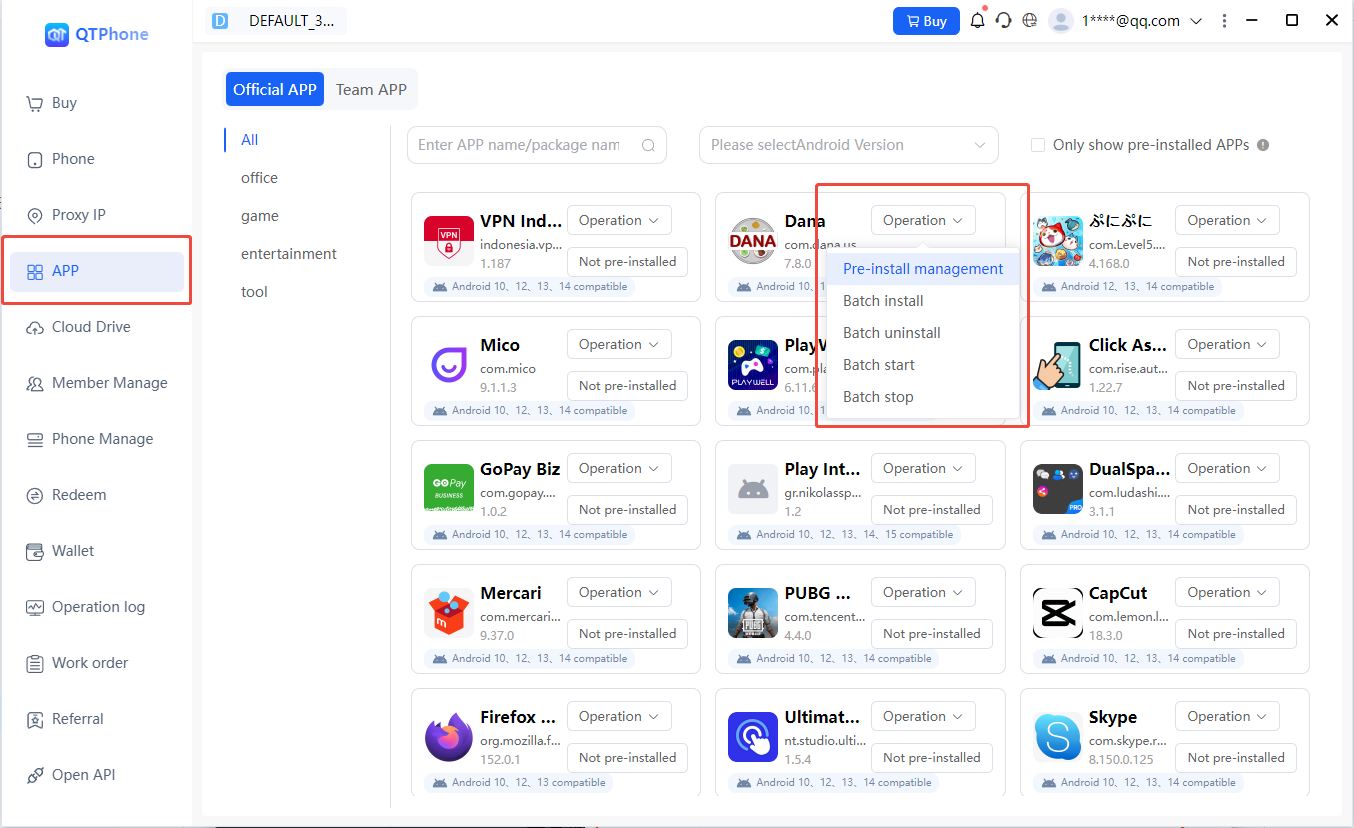
Click App Market in the menu bar. The page has two tabs:
- Official Apps: apps provided by the platform, labeled with the compatible Android versions;
- Team Apps: local apps uploaded by users themselves.
2. App Management Operations
The following operations can be performed on apps:
- Pre-installation management;
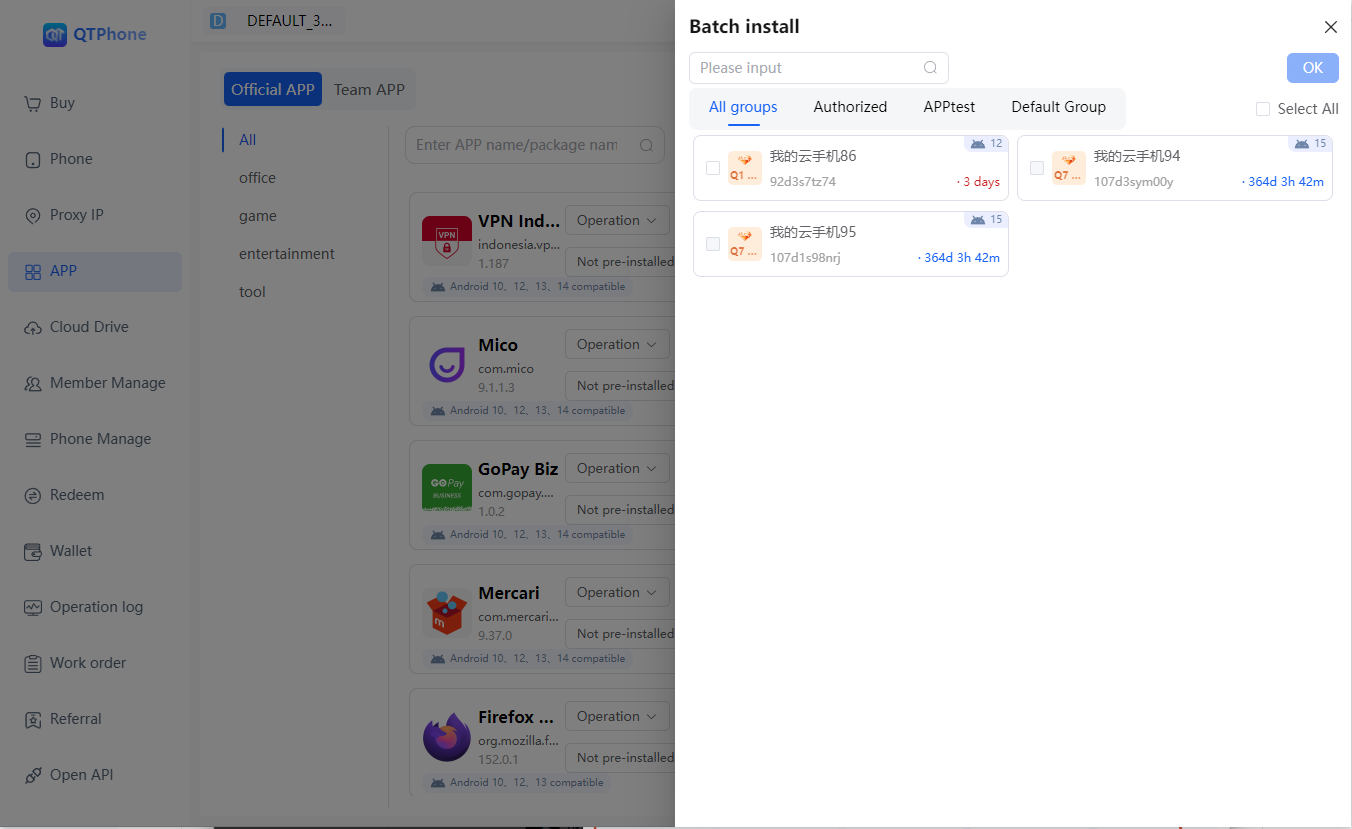
- Batch installation;
- Batch uninstallation;
- Batch launch;
- Batch stop.
Batch operations are performed by group: you can operate on an entire group in batch, or on an individual cloud phone within a group. A single batch operation has no quantity limit.
Note: Cloud phones power on automatically after purchase and are in the powered-on state under normal conditions, so batch operations can be performed directly.
3. Pre-installed Apps
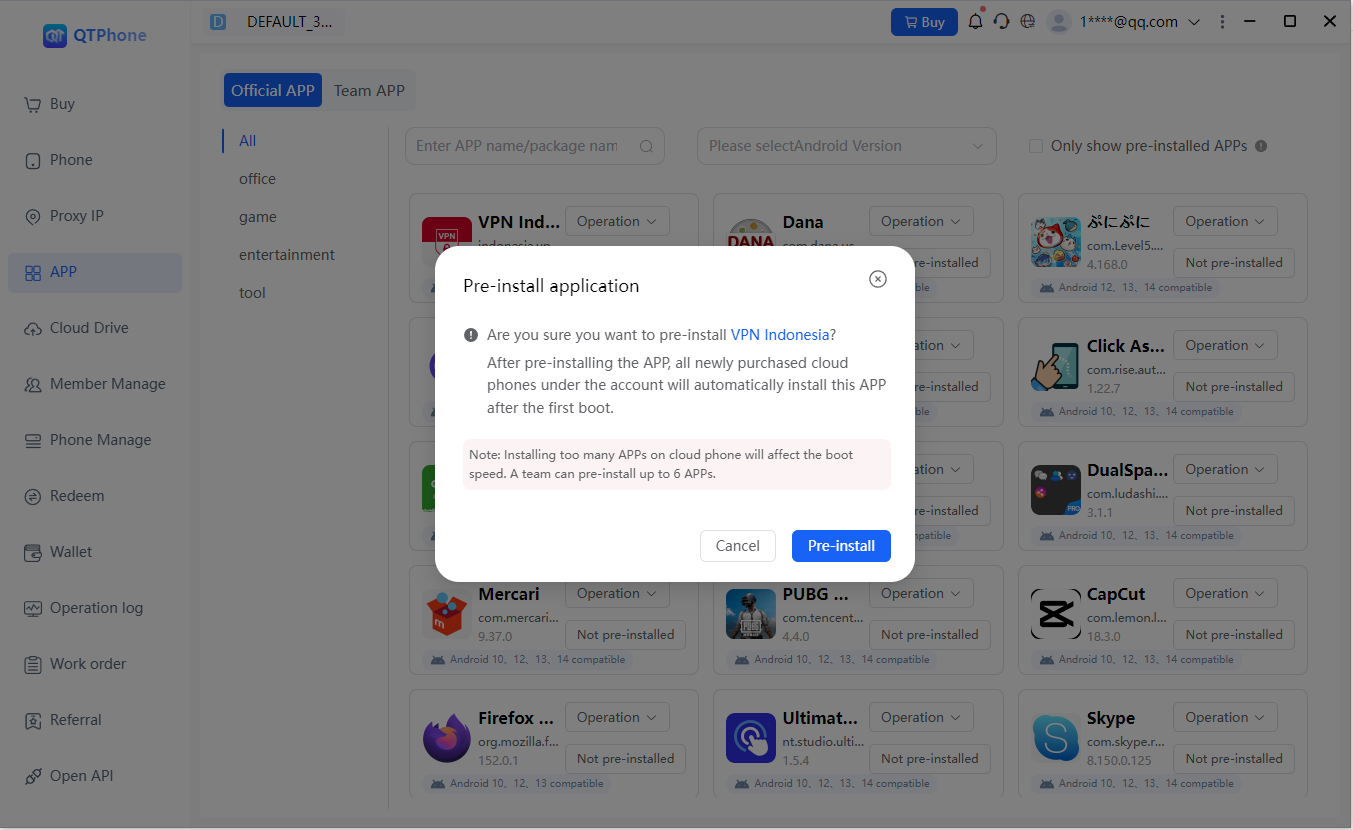
- Once pre-installation is configured, all newly purchased cloud phones under the account will automatically install the app after the first startup (effective only for newly purchased cloud phones);
- A team can pre-install up to 6 apps;
- Note: installing too many apps slows down startup, so pre-install only what you need.
4. Operations on the Cloud Phone Page
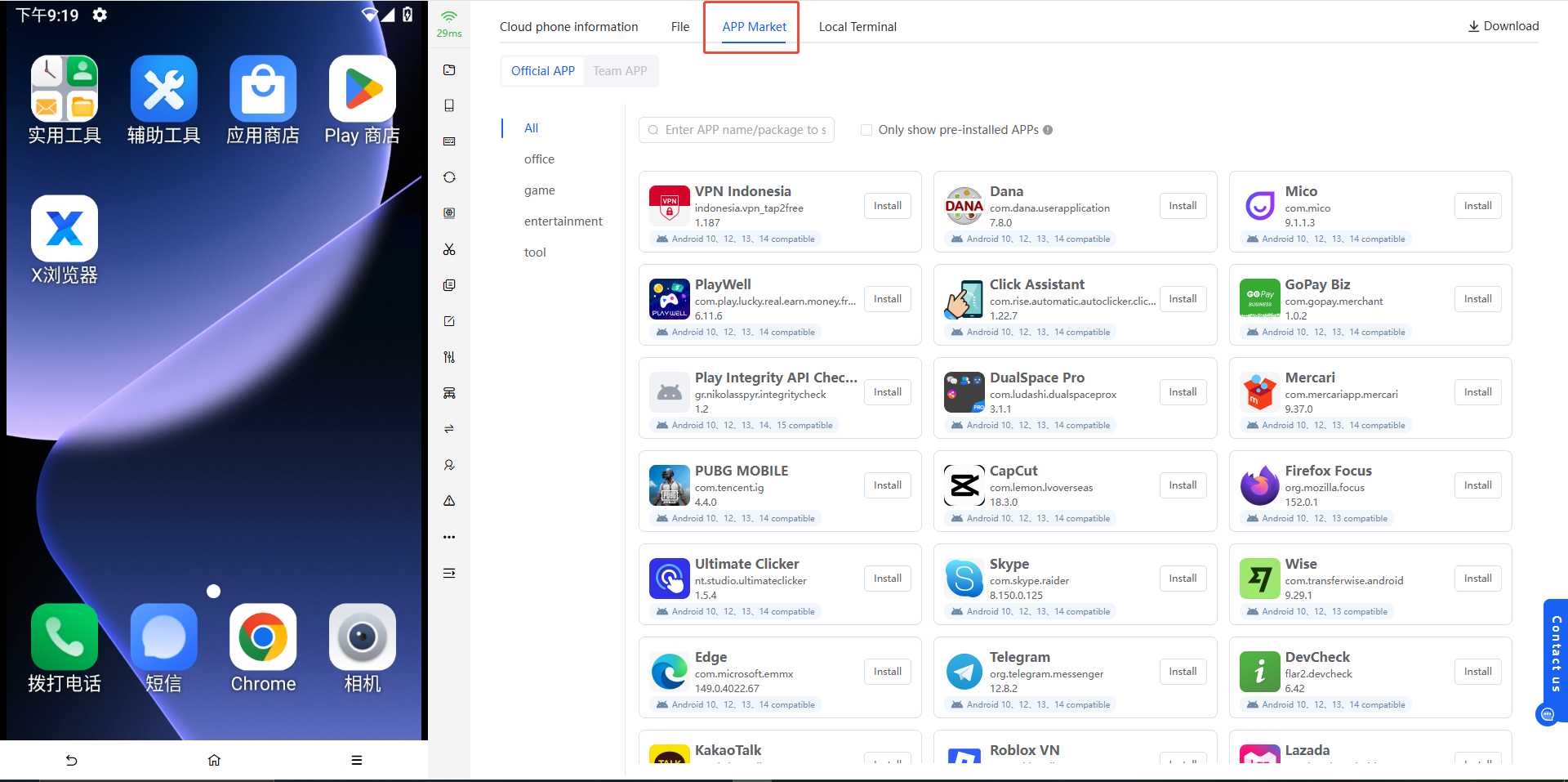
On the cloud phone page, you can also perform pre-installation management, batch installation, batch uninstallation, batch launch, and batch stop on apps. The entry is located next to the "Files" tab outside the cloud phone.
5. Tips
- The number of pre-installed apps is limited (up to 6), so prioritize frequently used apps;
- Installing too many apps slows down cloud phone startup; clean up unused apps regularly.
6. FAQ
Q1: Do cloud phones need to be powered on for batch operations? No extra action is required. Cloud phones power on automatically after purchase and are in the powered-on state under normal conditions, so batch operations can be performed directly.
Q2: Is there a quantity limit for a single batch operation? No, there is no quantity limit.
Q3: Do pre-installed apps take effect on existing cloud phones? No. Pre-installed apps are only automatically installed on newly purchased cloud phones after their first startup under the account.
Q4: Where can I perform app operations on the cloud phone page? The entry is located next to "Files" outside the cloud phone.