
Ticket Feedback
The ticket function is used to submit feedback and issues to the QTPhone team, with support for uploading images and videos as supplementary information.
1. Overview
The ticket function handles product-level suggestions and issue feedback, with four categories:
| Category | Use Case |
|---|---|
| Feature Suggestion | Requesting new features or improvements to existing ones |
| UI Suggestion | Feedback on page layout, interaction, or visual design |
| Bug Feedback | Functional anomalies, display errors, and other issues found during use |
| Other | Opinions or issues that do not fit the categories above |
You can attach images or videos when submitting a ticket to help the team understand your suggestion or issue more intuitively.
For cloud phone device faults (failure to start, connection issues, etc.), use the Fault Reporting function instead. It automatically associates device information for faster handling.
2. Prerequisites
- A registered QTPhone account, logged in
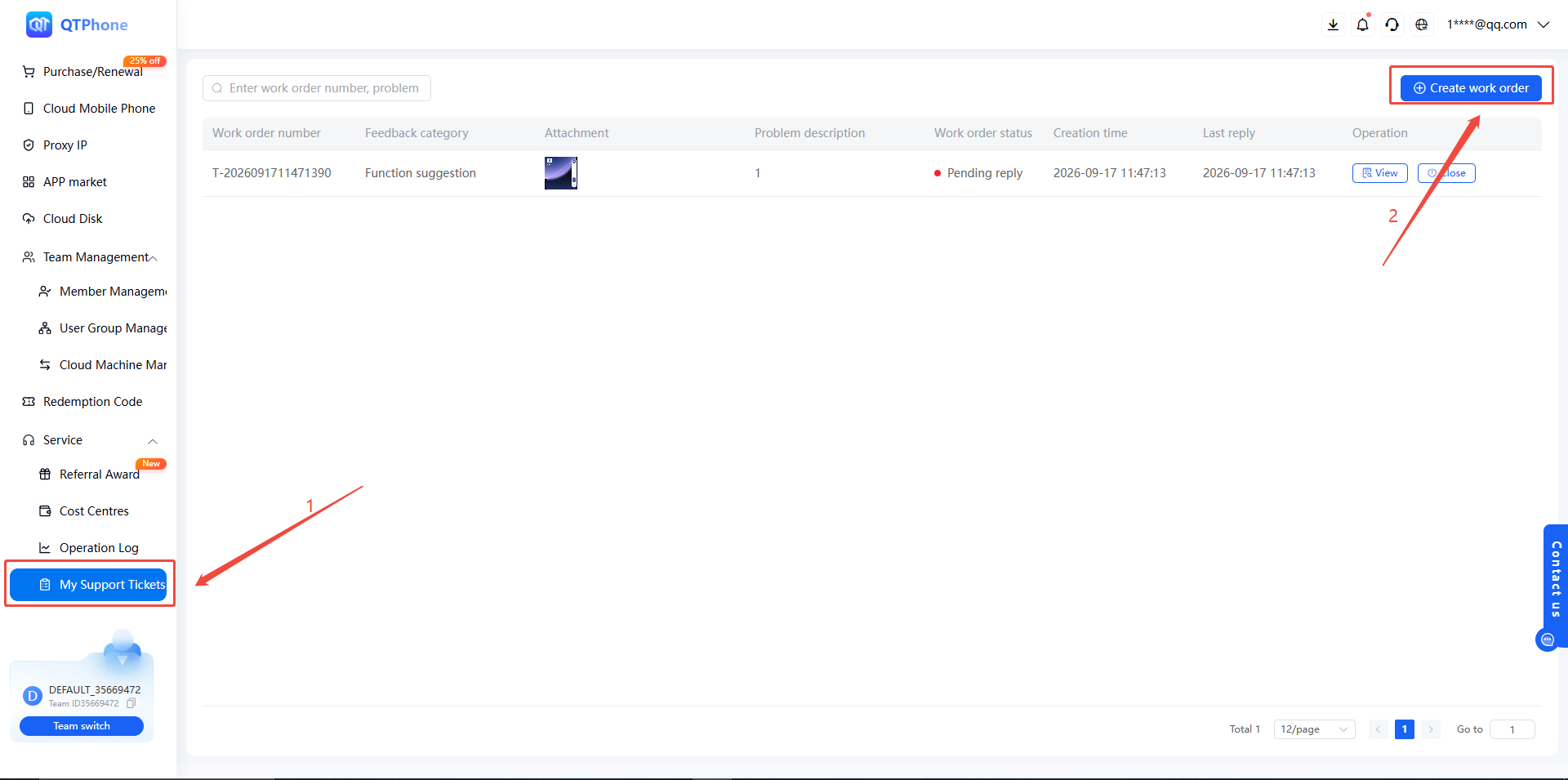
- Navigate to the My Tickets module in the left navigation
3. Steps
1. Create a Ticket
Go to the My Tickets page and click Create Ticket.
2. Select a Category and Fill in the Content
Taking a feature suggestion as an example:
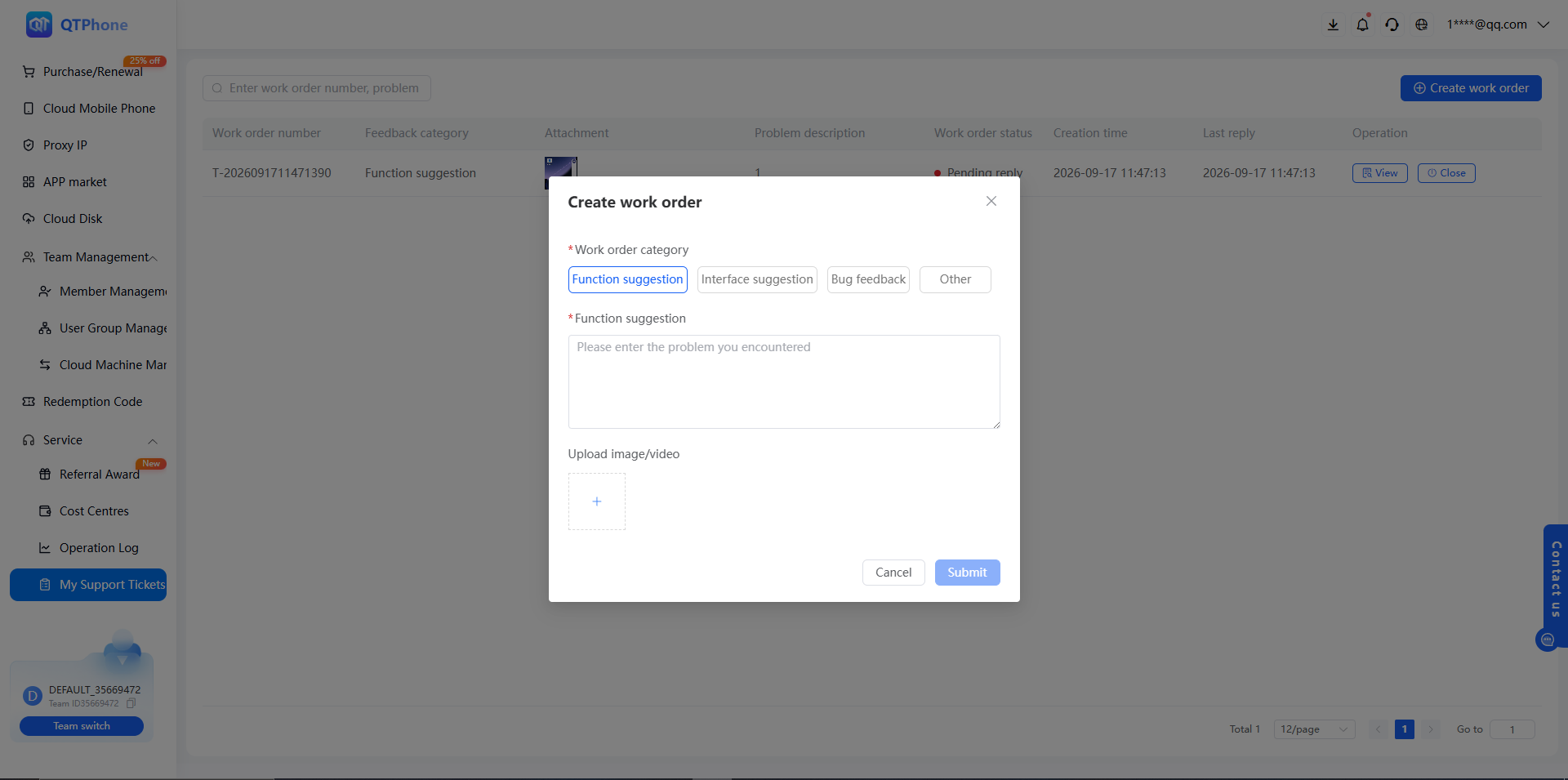
- Select Feature Suggestion as the ticket category
- Enter a title that briefly summarizes the suggestion
- Fill in the content. It is recommended to include:
- The feature you want to add or optimize
- The specific usage scenario
- The expected outcome
3. Upload Images/Videos
Click the upload control in the content area and select a local image or video file as supplementary information.
TIP
Prepare screenshots or screen recordings that clearly demonstrate your suggestion or the issue in advance. This helps the team quickly understand your needs.
4. Submit the Ticket
After confirming the content is correct, click Submit to create the ticket. You can view your ticket history in the My Tickets list.
4. Notes
- Be as specific as possible: for feature suggestions, include the usage scenario and expected outcome; for bug feedback, include reproduction steps and actual behavior
- Mask sensitive information such as account names and device IDs in uploaded screenshots
- For faults related to a specific cloud phone, use the Fault Reporting process instead of submitting a ticket
5. FAQ
Q1: What is the difference between a ticket and fault reporting?
Fault reporting is initiated from the cloud phone operation menu and automatically associates the target device. It is intended for cloud phone faults (failure to start, abnormal display, etc.). Tickets are for product suggestions and general issues (features, UI, bugs) and are not tied to a specific device.
Q2: How do I follow up on a submitted ticket?
You can view your submitted tickets in the My Tickets list. If there is no response for an extended period, follow up through the official customer service channel.
Q3: What are the requirements for uploaded images/videos?
Common image and video formats are supported. Use clear screenshots or recordings and keep the file size reasonable to ensure a successful upload.