
Share Function
The cloud phone share function supports sharing an individual cloud phone with others via a link or QR code. Recipients do not need to register or sign in to an account; after opening the link or scanning the code, they can directly access and use the cloud phone.
1. Enter the Share Page
- After signing in to the platform, click My Cloud Phones in the menu bar;
- In the cloud phone list, find the cloud phone to share;
- Perform the Share operation on that cloud phone.
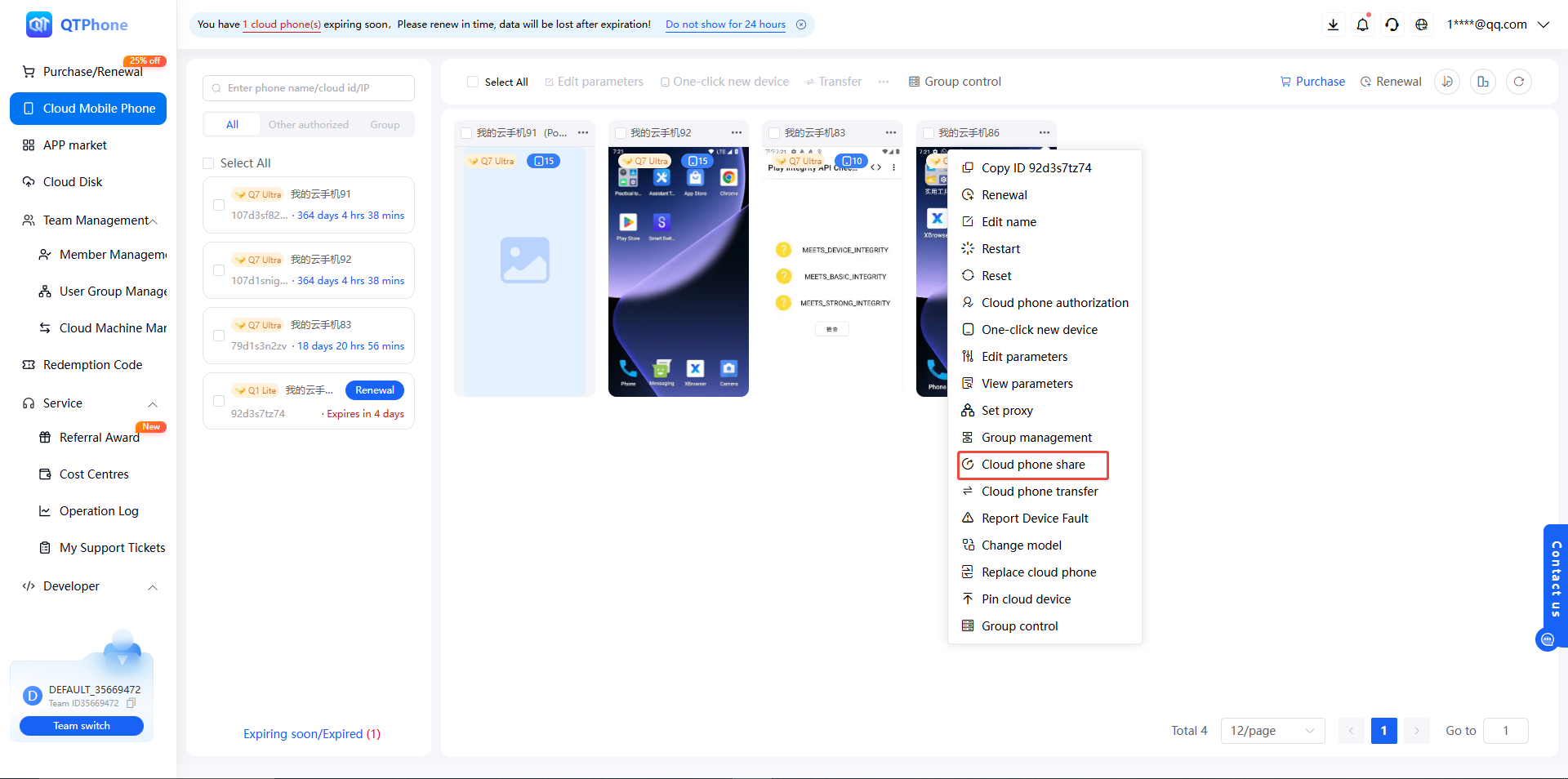
2. Configure Share Parameters
In the pop-up Cloud Phone Share window, you can configure the following parameters:
| Parameter | Description |
|---|---|
| Share switch | Controls the validity of the share; once turned off, the share becomes invalid |
| Link validity | Choose 1 day or 5 days; the share must be regenerated after expiration |
| Share password | Can be randomly generated by the system or customized (up to 8 characters); with "auto-fill password" checked, recipients can access the link without manually entering the password |
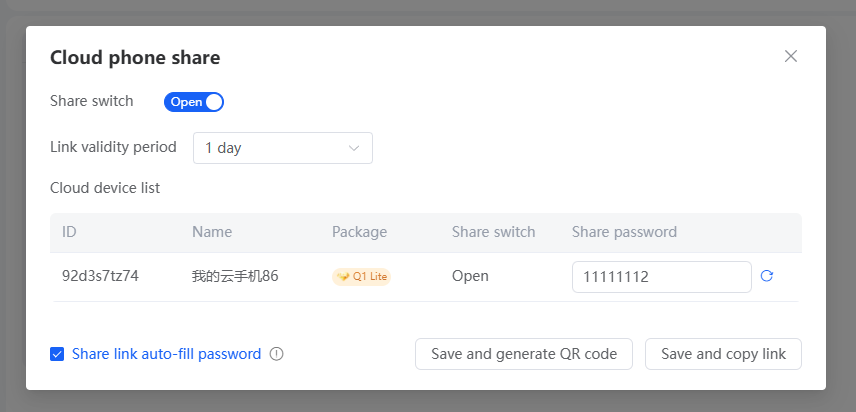
3. Generate a Share Link / QR Code
After configuration, choose either of the following ways to generate the share content:
- Save and Generate QR Code: generate a QR code image that recipients can scan to access;
- Save and Copy Link: copy the share link and send it to the recipient.
4. Recipient Access
Method 1: Access via link
- The recipient opens the share link in a browser;
- Clicks Access Cloud Phone;
- Can then use the cloud phone without registering or signing in to an account.
Method 2: Access via QR code
- The recipient scans the QR code with a device;
- After opening it, clicks Access Cloud Phone to use the cloud phone, same as with link access.
5. Tips
- Recipients can access without an account and have full operation permissions on the cloud phone, so share only with trusted people;
- The share password can be randomly generated or customized (up to 8 characters); check "auto-fill password" to spare the recipient from manual entry;
- The share link validity can be 1 day or 5 days, after which it must be regenerated;
- After the share switch is turned off, the share link becomes temporarily invalid; once turned back on, the original link becomes valid again;
- Currently, only individual cloud phones can be shared; batch sharing is not supported;
- Whether team members have share permissions is determined by the permission settings of their user group.
6. FAQ
Q1: Do recipients need to register an account? No. Recipients can use the cloud phone directly by opening the link or scanning the code without registering or signing in.
Q2: What can the recipient do with a shared cloud phone? The recipient gets full operation permissions on the cloud phone, so share only with trusted people.
Q3: How long is the share link valid? You can choose 1 day or 5 days; the share must be regenerated after expiration.
Q4: How do I set the share password? It can be randomly generated by the system or customized with up to 8 characters; with "auto-fill password" checked, the recipient does not need to enter it manually.
Q5: Can I share multiple cloud phones in batch? Not currently. Only individual cloud phones can be shared one at a time.
Q6: After turning off the share switch, is the original link still valid when turned back on? Yes. The link becomes temporarily invalid when turned off, and the original share link automatically becomes valid again once the share switch is turned back on.