
Group Management
1. What Is Group Management?
Group management is a feature for categorizing and managing the cloud phones under your name. You can sort cloud phones into different groups based on business, project, or usage purpose, for categorized viewing and batch management.
- Each cloud phone belongs to only one group;
- All cloud phones enter the "Default Group" by default after purchase;
- You can create groups, add/move cloud phones to groups, batch move groups, rename groups, delete groups, and more;
- Groups are for organizational purposes only and do not affect the normal use, authorization, or transfer of cloud phones.
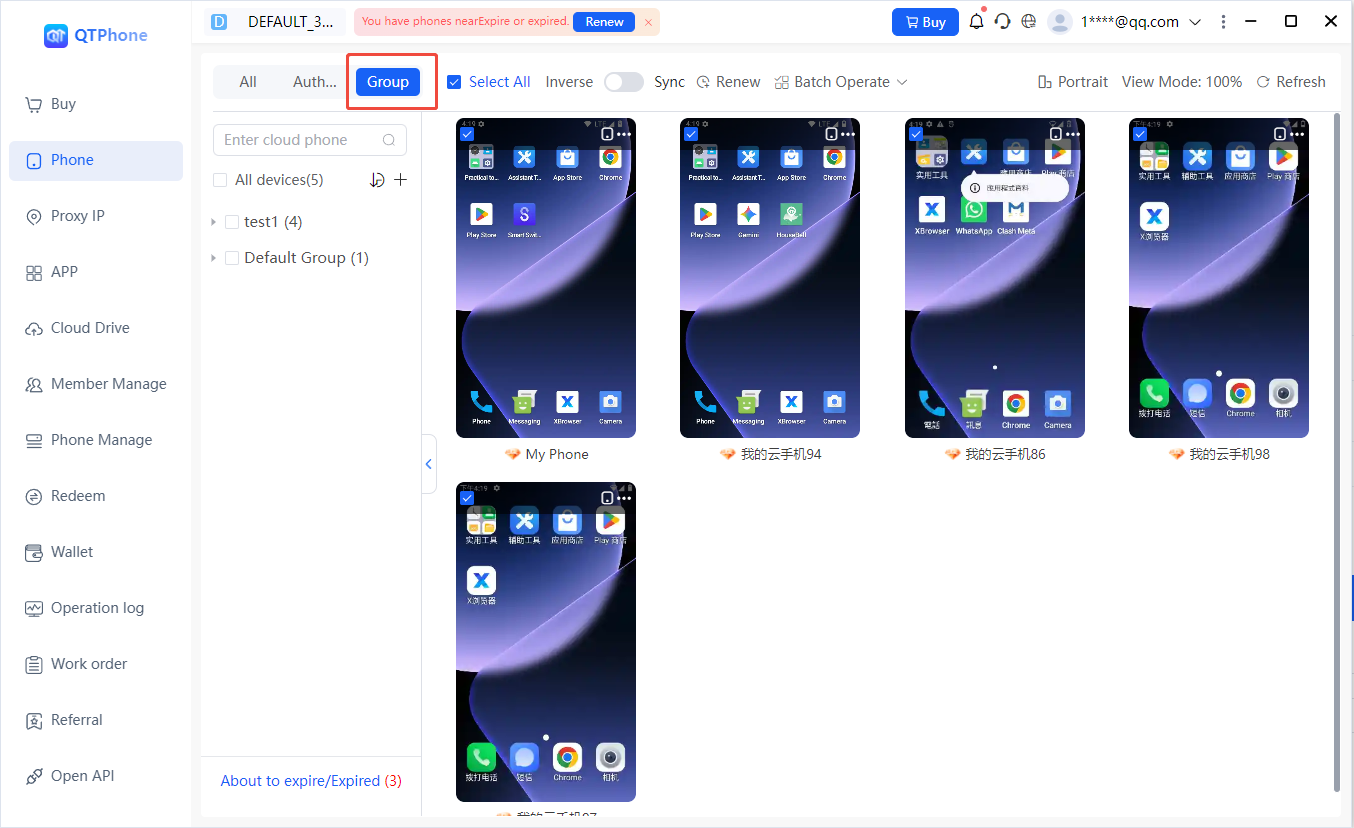
2. Why Use Groups?
- When you have many cloud phones, categorizing them by business / project / purpose makes viewing clearer;
- Batch moving multiple cloud phones between groups makes management more efficient;
- After categorization, it is easier to perform unified operations on cloud phones in a specific group later.
3. How to Create a Group
- Go to My Cloud Phones → Groups;
- Click Create Group;
- Enter the group name (1–10 characters);
- Confirm to create.
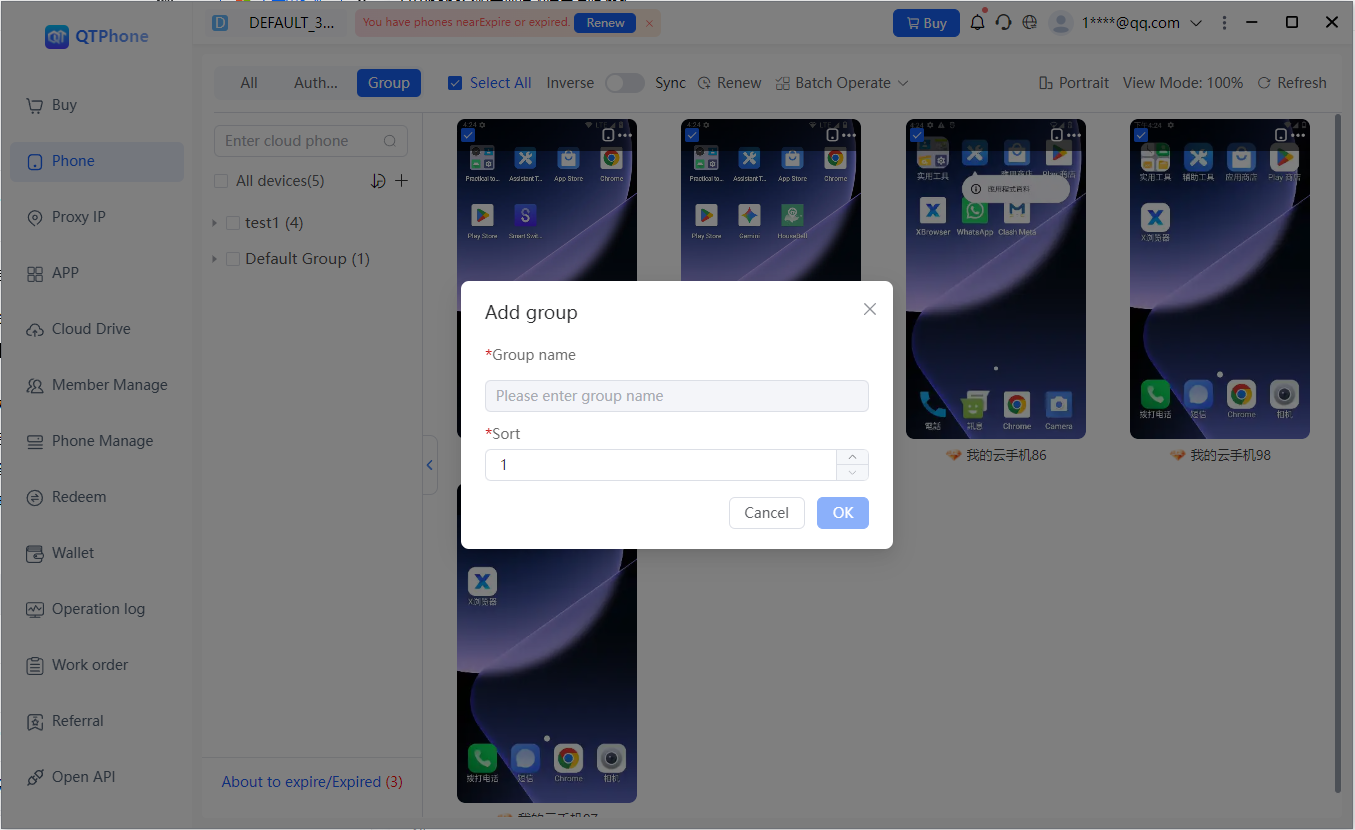
4. How to Add / Move Cloud Phones to a Group
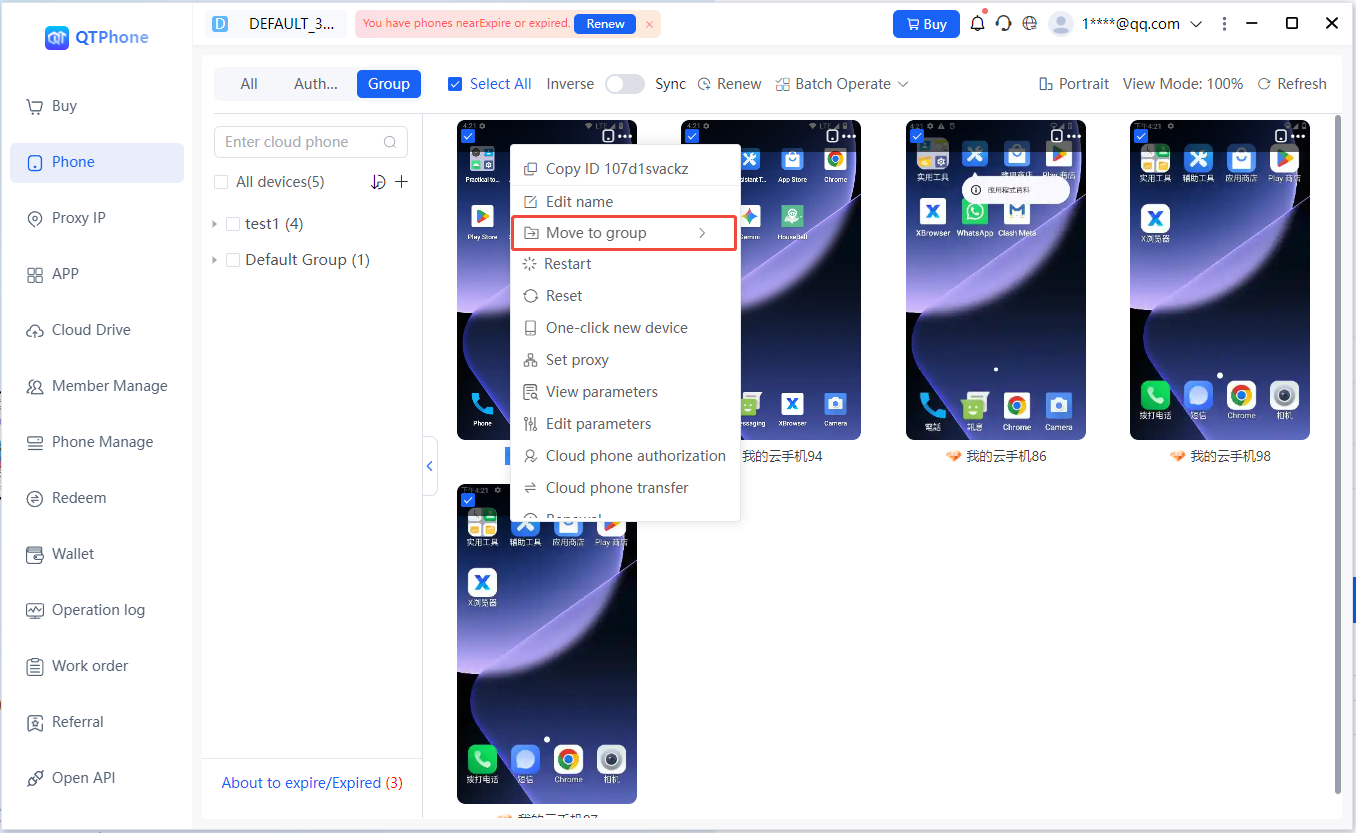
1. Moving a Single Cloud Phone
- In the cloud phone list, click the More function key of a single cloud phone;
- Select Move to Group;
- Select the target group;
- After confirmation, the cloud phone is removed from the original group and added to the new group.
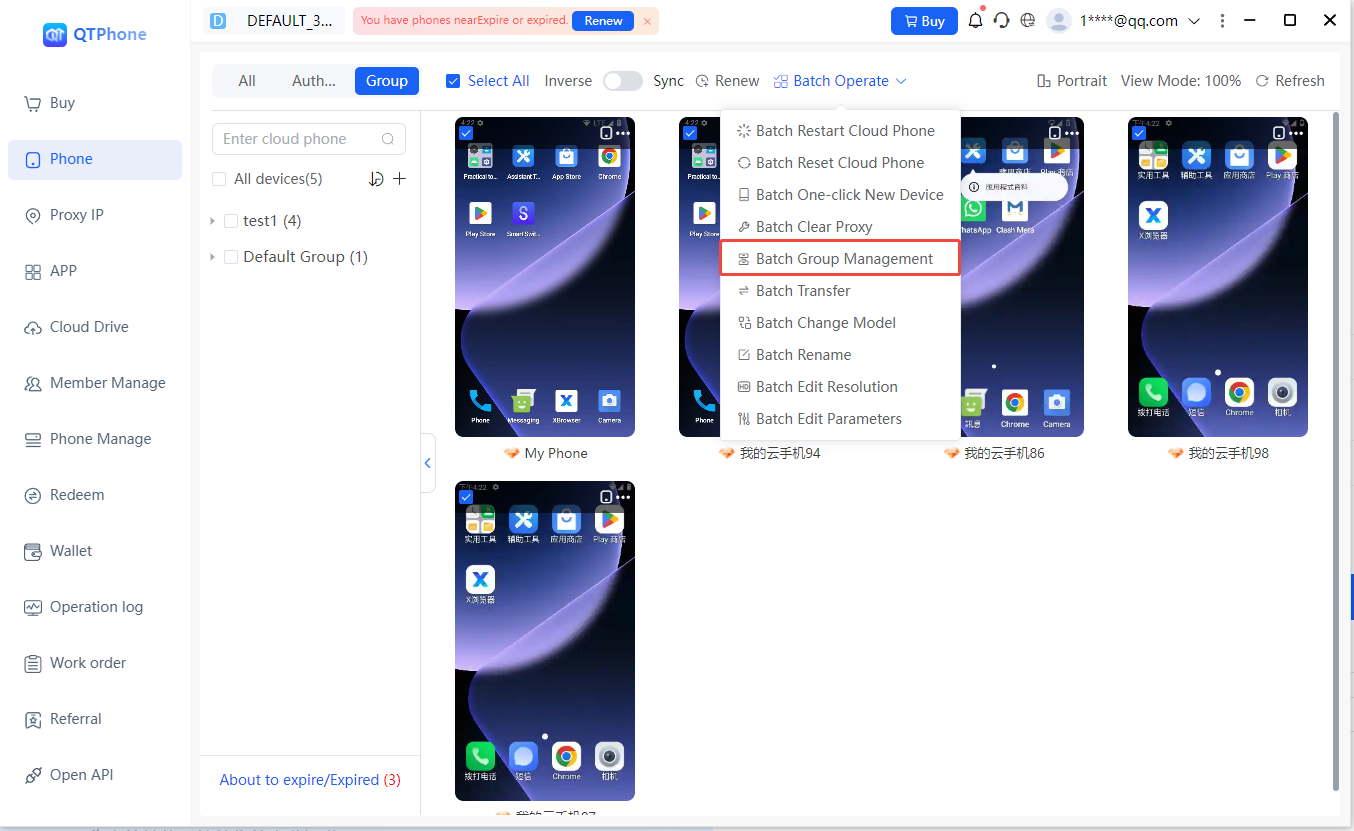
2. Batch Moving
- In Batch Management above the cloud phone list, select Group Management;
- Check the multiple cloud phones to move;
- Select the target group;
- After confirmation, the move is completed in batch (each cloud phone is removed from its original group and added to the new group).
3. Move Notes
- A cloud phone belongs to only one group; moving it to a group removes it from the original group and adds it to the new one;
- Cloud phones already in a group can be moved to other groups at any time.
5. Renaming and Deleting Groups
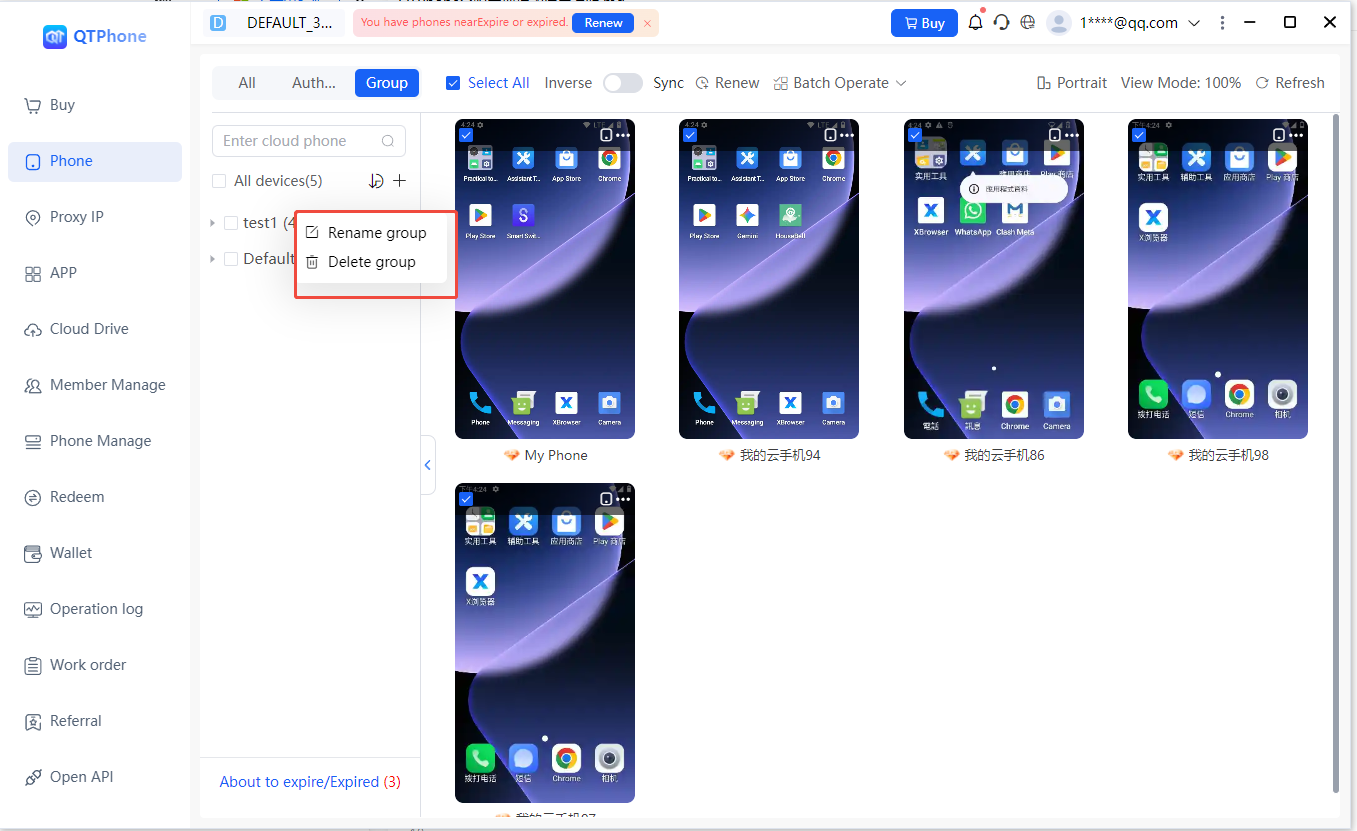
- Right-click on a group name to reveal the Rename and Delete Group function keys;
- Rename: modify the group name (1–10 characters);
- Delete Group:
- A group containing cloud phones cannot be deleted; move the cloud phones out first;
- Deleting an empty group requires a second confirmation before it is deleted.
6. Notes
- Each cloud phone belongs to only one group; after being moved, it is removed from the original group;
- All cloud phones enter the "Default Group" by default after purchase;
- The Default Group cannot be renamed or deleted;
- A group containing cloud phones cannot be deleted; deleting an empty group requires a second confirmation;
- Cloud phones in the Authorized Group (cloud phones authorized to you by others) cannot be moved to custom groups;
- Groups are for organizational purposes only and do not affect the normal use, authorization, or transfer of cloud phones.