
Team Management
Team management is used to organize members to collaboratively use cloud phone resources. Every account comes with a default team. You can invite other users to join the team and assign them the administrator or member role.
1. Feature Overview
- Team management is used to organize members to collaboratively use cloud phone resources;
- Every account automatically has a default team, which requires no creation and cannot be deleted;
- When inviting other users to join, regardless of whether they join as an administrator or a member, they join the inviter's default team;
- A user can join multiple teams at the same time, with different roles in different teams;
- Invited users can switch teams or leave a team at any time.
Roles and Permissions
| Role | Permission Description |
|---|---|
| Administrator | The default role, with all team permissions except "add / delete sub-administrators" |
| Member | Permissions are determined by the permission settings of the user group they belong to |
About User Group Permissions
- Every account has a default "Sub-administrator Group", which has all permissions except "add / delete sub-administrators";
- Users can create their own user groups and customize the group's permissions;
- User group names must be unique.
Common Operations
- Invite Members: invite users to join via user ID or invitation link → Invite Members;
- Member Management: view, edit, and delete team members → Member Management;
- Group Management: create user groups, assign members, and customize permissions → Group Management.
2. Prerequisites
- You have signed in to the platform;
- You have a team (every account comes with a default team, which requires no creation).
3. Steps
1. Switching and Leaving a Team
Invited users can switch or leave a team at any time:
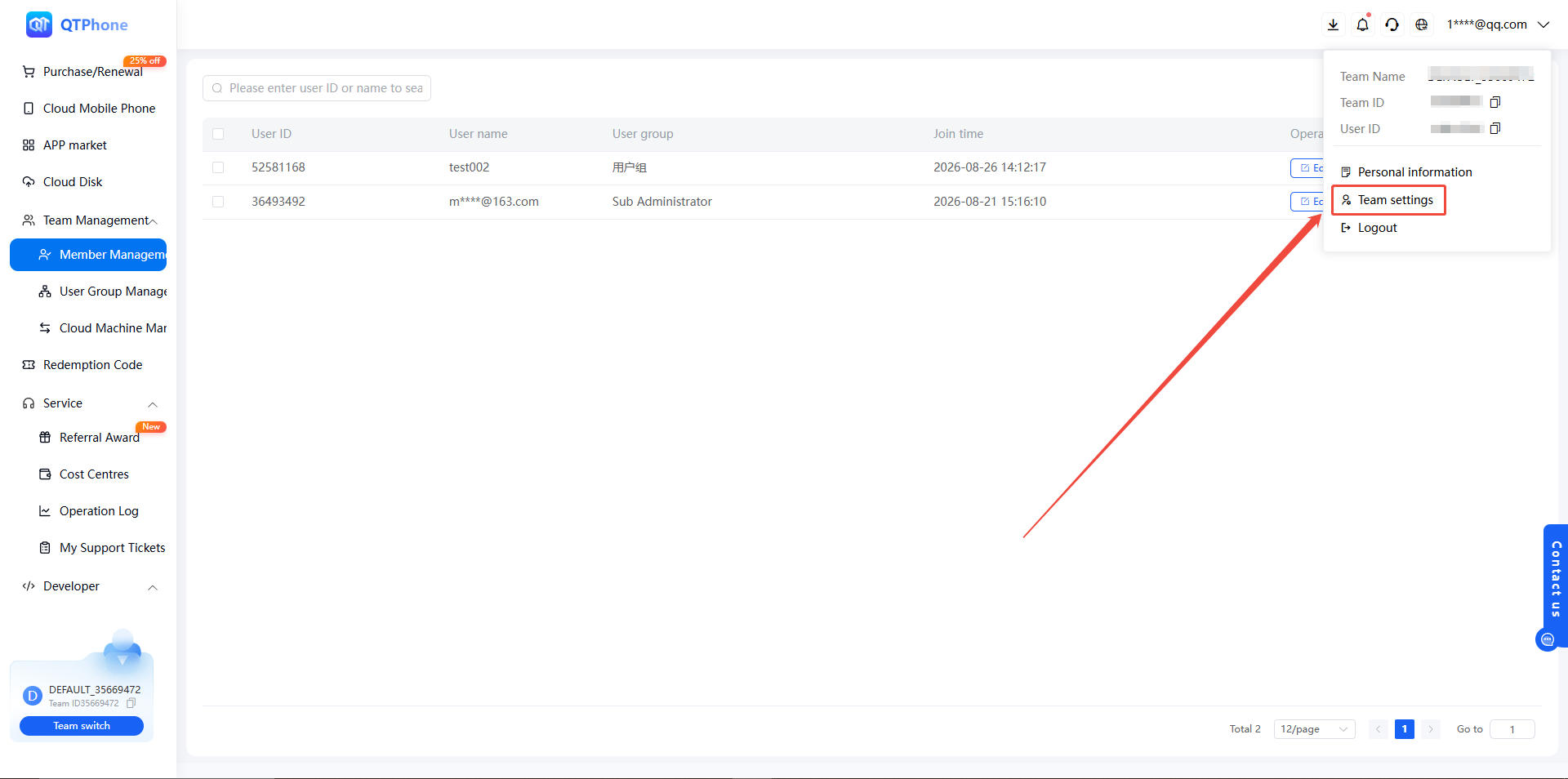
- Click Team Settings in the upper-right corner of the user avatar;
- Find the target team and choose Switch Team or Leave Team.
4. Notes
- Every account has only one default team, which requires no creation and cannot be deleted;
- Regardless of whether invitees join as administrators or members, they join the inviter's default team;
- Switching or leaving a team is performed by the invited user themselves in Team Settings.
5. FAQ
Q1: Do I need to create a team manually? No. Every account automatically has a default team, and it cannot be deleted.
Q2: Which team will an invited user join? Regardless of whether they join as an administrator or a member, they join the inviter's default team.
Q3: Can a user join multiple teams at the same time? Yes. A user can join multiple teams at the same time, with different roles in different teams.