
Group Management
User groups are used to categorize and manage team members and control the team resources available to them through custom permissions. Members must join a user group before using team resources according to the group's permissions.
1. Feature Overview
- User groups are used to categorize and manage team members and control the team resources available to them through custom permissions;
- Members must join a user group before using team resources according to the group's permissions;
- Each account has a default "Sub-administrator Group" that has all permissions except "add / delete sub-administrators";
- When creating a user group, you can configure the group's permissions to determine which team resources its members can use; permission settings are subject to the configuration of the creator / administrator;
- User group names must be unique, and a group can only be deleted when it contains no users.
2. Prerequisites
- You have signed in to the platform;
- A team has been created (every account comes with a default team).
3. Steps
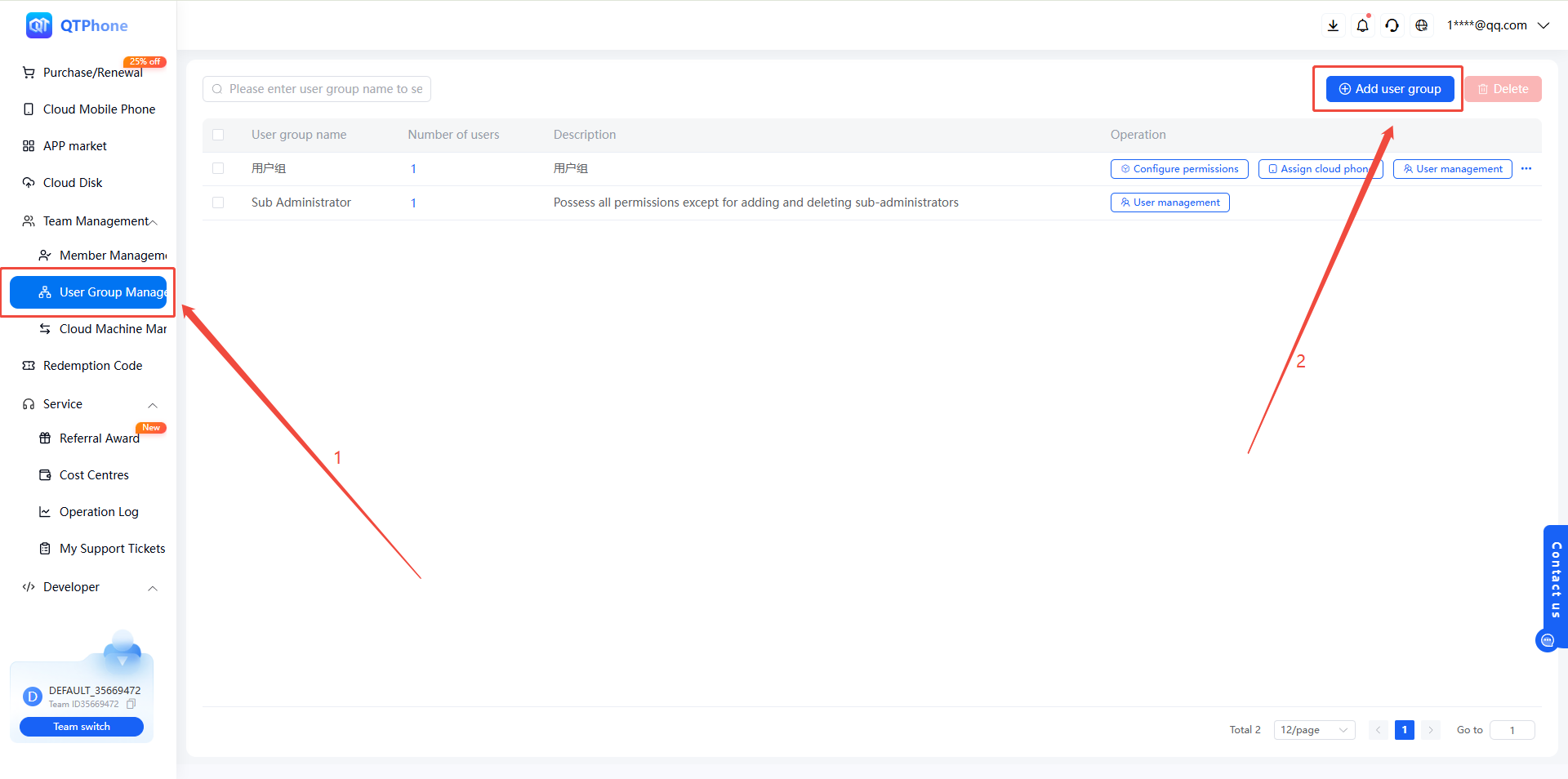
1. Create a User Group
- On the Invite Members page or the Group Management page, click Create User Group;
- Enter the group name and save.
2. Assign a User Group to a Member
- Assign when inviting: when inviting a member, select the target group in the user group drop-down list;
- Adjust after inviting: in Member Management, edit the member and change their user group.
3. Edit a User Group
- Edit group name: rename the user group;
- Delete group: a group can only be deleted when it contains no users.
4. Move Members
- Individual members can be moved to other user groups;
- Batch moving is currently not supported; adjust members one by one.
5. Custom Permissions
- When creating a user group, you can configure the group's permissions to determine which team resources its members can use;
- Permission settings are subject to the configuration of the creator / administrator.
4. Notes
- User group names must be unique;
- A group can only be deleted when it contains no users;
- Batch moving is currently not supported; adjust members one by one.
5. FAQ
Q1: Can user group names be duplicated? No. User group names must be unique.
Q2: Can a user group be deleted when it still contains members? No. A group can only be deleted when it contains no users.
Q3: Can members be moved to other groups in batch? No. Batch moving is currently not supported; adjust members one by one.